

Bookings List
The Bookings table — its columns, server-side search, the status, source, date and sort filters, paging, and opening a reservation from a row.
Bookings (/bookings) is the list view of every reservation at the property: one row per reservation, newest booking first, with the same status and source badges the Calendar uses. It is the fastest way to find a booking by name, email or reference, to pull up everyone who is In-House, or to list the stays that touch a particular week. Click a row to open the reservation's detail sheet; from there View reservation opens the full page.
The old /reservations address redirects here.
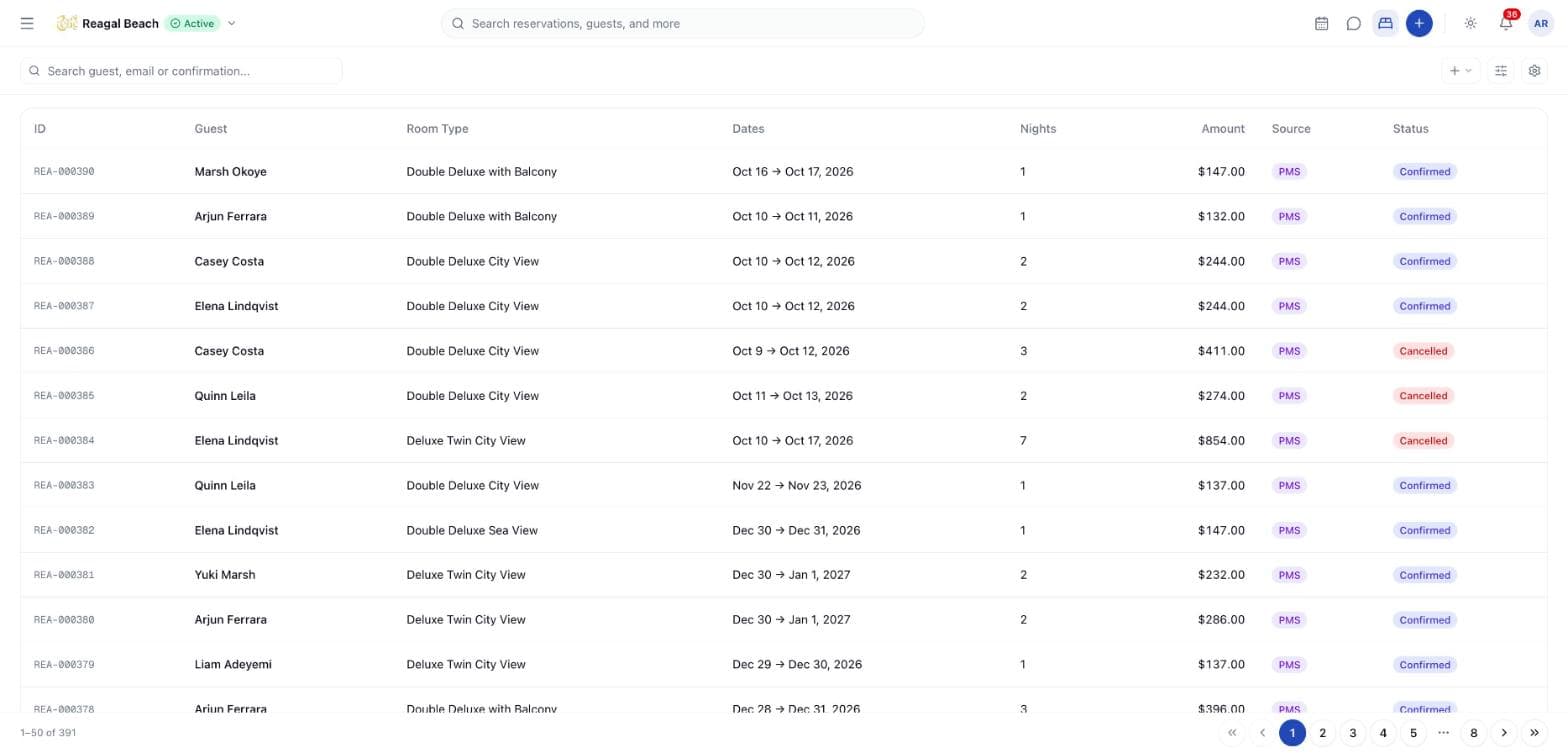
Columns
| Column | Content |
|---|---|
| ID | The booking reference — the property's own number, or the channel's code on an OTA booking — in monospace. This is what you read out to a guest. |
| Guest | Booker's first and last name. |
| Room Type | Name of the room type of the first room on the booking; — if the type was deleted. |
| Dates | Check-in → check-out, e.g. Oct 9 → Oct 11, 2026. |
| Nights | Check-out minus check-in. |
| Amount | Total for the stay in the reservation currency, right-aligned. |
| Source | PMS, Direct, or the OTA's name with its logo for channel bookings. |
| Status | On Hold, Confirmed, In-House, Checked Out, Cancelled or No Show. |
On a phone the table becomes a stack of cards carrying the same fields.
Search
The search box (Search guest, email or confirmation…) queries the server as you type, with a short pause so every keystroke is not a request, and it searches the whole property rather than the page on screen. It matches:
- the guest's first name and last name,
- the guest's email,
- the property's own booking reference,
- the OTA reservation code,
- the tail of the reservation's internal id.
The navbar's global search (Search reservations, guests, and more) covers the same ground from anywhere in the PMS; see Navigating the PMS.
Filters and sorting
The Filters button (sliders icon) opens one popover holding everything. A badge on the button counts how many filters are set, and Clear all resets them. Every one of them is applied by the server, before the page limit, so a filter never hides a booking that was simply on another page.
| Control | Options | Notes |
|---|---|---|
| Status | All statuses, Confirmed, In-House, Checked Out, Cancelled, No Show | There is no On Hold entry; holds appear under All statuses |
| Source | All sources, PMS, Channel | Direct bookings appear under All sources and are excluded by both |
| Stay dates | A date range | In house on any night of the range — any stay overlapping it, not just arrivals |
| Booked on | A date range | When the reservation was created, both ends inclusive |
| Sort by | Booked, newest first · Booked, oldest first · Arrival, latest first · Arrival, earliest first | Booked, newest first is the default |
| Room type | All Room Types, then each of your room types | Matches a booking where any of its rooms is of that type |
Changing any filter, the sort or the search starts again from page 1.
Useful combinations: Status = In-House is your in-house list; Stay dates set to next week plus Sort by = Arrival, earliest first is that week's arrival sheet; Booked on = today is what the shift has taken.
Paging
The list loads 50 reservations at a time. When there are more, a footer appears reading 1–50 of N with page controls beside it. The count is the property's real total for the filters you have set, so it doubles as a quick answer to how many bookings match this?
No bulk actions or export on this screen
There are no row checkboxes and no bulk actions: a status change, a move or a cancellation is done one reservation at a time, deliberately. For a day-by-day list you can print or export, use the front desk report; for financial extracts, the reports under Accounting → Reports.
Toolbar
- + → New Reservation opens the creation sheet described in Creating Reservations.
- The gear → Refresh reloads the list and room types from the server. The list also refreshes itself when a reservation is created, moved, checked in or out, cancelled or marked no-show from anywhere in the PMS.
Open a reservation
Click a row. The detail sheet slides in from the right with the guest name, status chip, View reservation, an edit button (for Confirmed reservations only) and a ⋯ actions menu holding Note, Move, Edit reservation, View reservation and the status actions for that booking — Check In, No Show and Cancel on a Confirmed booking, Confirm Booking and Release Hold on a hold, Check Out on an in-house stay.
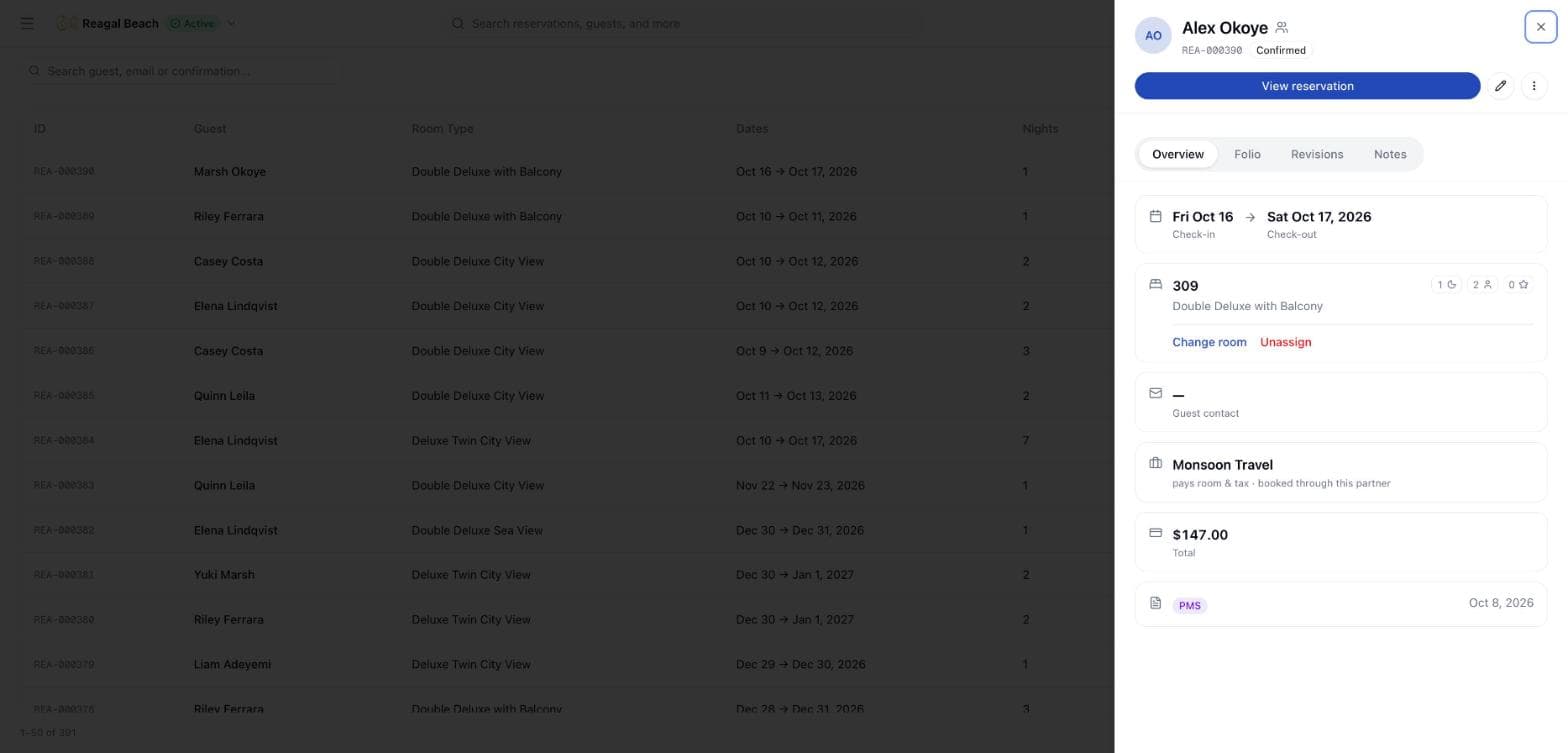
Its tabs are Overview, Folio, Revisions and Notes, plus Room details and Guarantee on a channel booking. The sheet is documented in Reservation Details.
Tips
- Cannot find a cancelled booking? They are listed — set Status = Cancelled.
- Looking for a hold? Leave Status on All statuses and sort by Booked, newest first; a hold has nowhere else to hide.
- Amount looks different from the folio balance. The list shows the booked total; the folio shows charges minus payments. See Key Concepts.
- Searching for a room number does nothing. The search covers people and references, not rooms. For who is in 204, use the Calendar.
Related
Calendar
The room-by-night grid — reading bars and badges, filtering and navigating dates, sweeping empty cells to book or hold a room, and dragging a stay to move it.
Inventory and Availability
The availability, rates and restrictions grid by room type and date — editing cells, selecting ranges, bulk updates, and how a save reaches your channels.