

Reports & Exports
The six reports under Accounting › Reports, how to read and export each one, and the MIRA returns and bookkeeping exports under Settings › Exports.
Accounting › Reports turns the same folio and city-ledger rows the journal uses into the reports a manager, an accountant and the tax office each need. Every report exports its table as CSV and prints cleanly with the Print button, which hides the navigation and tabs. Settings › Accounting › Exports produces the journal in a format your bookkeeping package imports, and the two workbooks MIRA's portal takes.
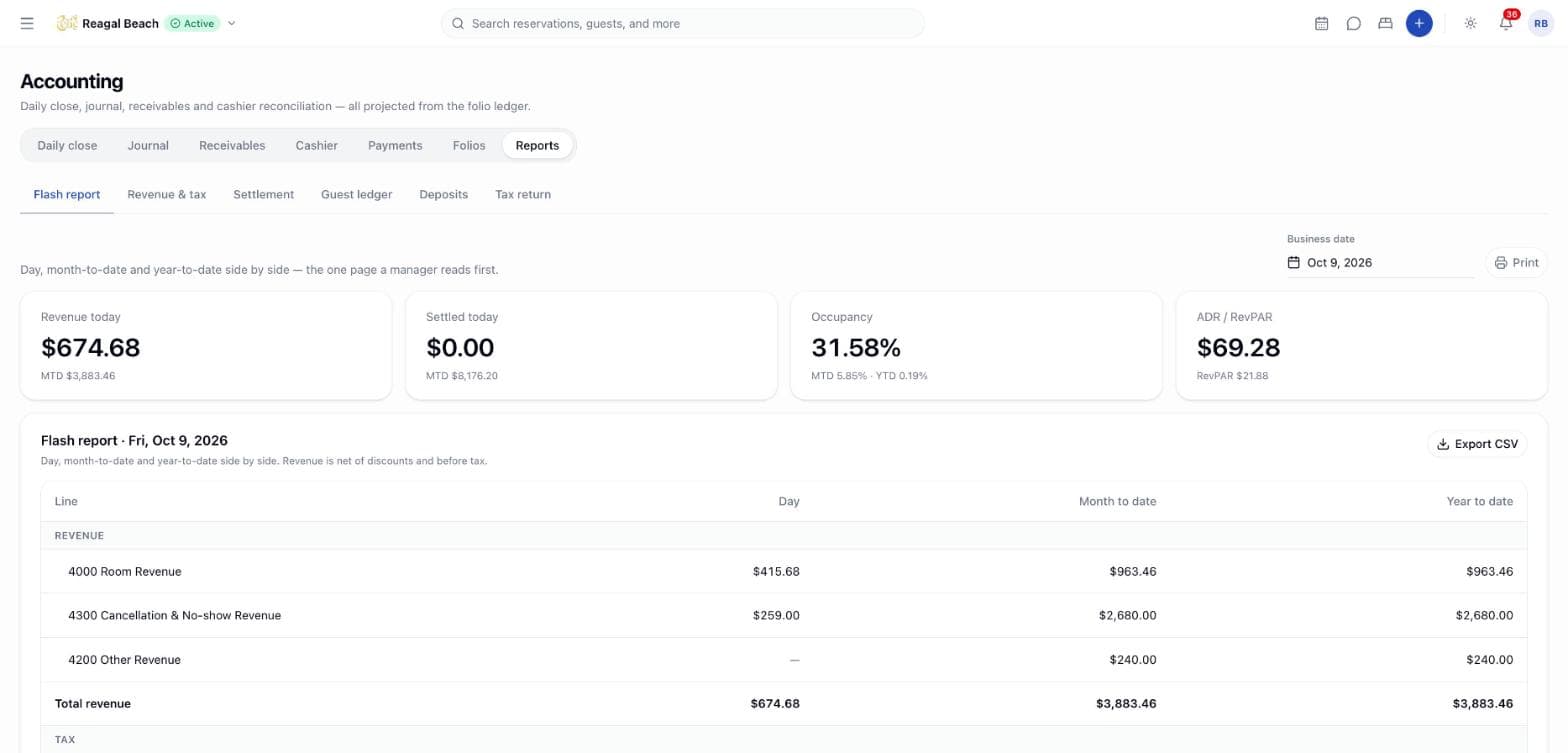
Open Accounting in the sidebar and choose Reports; pick a report from the tab row. Reading reports needs accounting: read; downloading the journal and the MIRA workbooks needs accounting: export.
Filters
Each report reads either a single Business date (Flash report, Guest ledger, Deposits), a date range (Revenue & tax, Settlement — 30 days by default, with Daily, Weekly or Monthly grouping for revenue), or Any day in the filing month (Tax return).
The reports
Flash report
Day, month-to-date and year-to-date side by side — the one page a manager reads first. Tiles show Revenue today, Settled today, Occupancy and ADR / RevPAR, each with its MTD or YTD context. The table has a Day, Month to date and Year to date column for every line: revenue by account and Total revenue; tax by head and Total tax; settlement by group and Total settled; Room nights sold, Room nights available, Occupancy, ADR, RevPAR, Arrivals and Departures. Revenue is net of discounts and before tax. Exports as flash-report_{date}.csv.
Revenue & tax
Revenue by GL account and tax by head, grouped by day, week or month. Tiles: Total revenue, Total tax, Room nights, Average per day/week/month. A stacked bar chart shows each period by GL account with discounts below the axis; the By period table lists every account per period with Revenue, Tax and Nights. Exports as revenue-by-{granularity}_{from}_{to}.csv.
Settlement
Every payment in the range by method, source and cashier, with refunds and reversals separated. Tiles: Net settled, Refunds (money given back), Reversed (already netted out), Cashiers. Panels:
- By method group — What the drawer, the terminal and the bank should each show.
- By cashier — OTA-collected payments have no cashier and are excluded.
- By currency — appears when the desk takes more than one currency: Taken, Rate and the amount in the base currency.
- OTA commission — appears when accrual is on: Gross, Commission and Net per channel.
- Every payment — Received, Reservation, Type, Source, Method, Cashier, Amount; refunds negative, reversals muted. Each row has a print-receipt icon that opens the Receipt preview in the configured paper width.
Exports as settlement_{from}_{to}.csv.
Guest ledger
Every folio that is not at zero: who owes money, how much, and for how long. Tiles: Total owed, In-house (collect before departure), Departed with balance (checked out owing money), Refunds due (guests overpaid). The table lists Reservation, Guest, Room, Status (In-house, Checked out, Arriving), Stay, Charges, Settled, Balance and Age; departed balances older than seven days are flagged. When nothing is outstanding it reads Every folio is settled. Exports as guest-ledger_{asOf}.csv.
Deposits
Advance deposits held, applied on arrival, refunded or forfeited. Tiles: Deposits held (labelled liability under deferred recognition), Applied to stays, Refunded, Forfeited (no-shows and late cancellations). Each deposit shows its reservation, guest, received and arrival dates, status (Held, Applied, Refunded, Forfeited) and amount. The description tells you which basis is in force — Cash-basis recognition: a deposit is revenue when received or Deferred recognition: a deposit sits in Deposits Held until the guest arrives — and points to Settings › Revenue & currency to switch. Exports as deposits_{asOf}.csv.
Tax return
The month's figures laid out the way the Maldives Inland Revenue Authority's T-GST return is boxed. Tiles: Taxable supplies, T-GST payable, Green Tax payable (chargeable nights × rate per night) and Filing due (the 28th of the following month). The Return summary lists each tax head with its Rate, Taxable value and Tax, then the Green Tax line, and Total payable. Tax as posted to folios for the period. Manual extra charges post net of tax by house style, so box 2 reflects only taxed supplies. Export for MIRA downloads mira-tgst-return_{YYYY-MM}.csv with one row per box.
The figures are derived from the tax lines actually posted, never from the tax configuration: a rate that changed mid-month, a stay that skipped its first night, or a tax someone removed by hand lives in the ledger and in nothing else.
A service charge is revenue here, not a tax head
A line item set up as a Fee under Settings › Accounting › Taxes & fees — a service charge — is money the property keeps, not money owed to MIRA. The tax return counts it as part of what was sold, inside the GST base, and never lists it as a tax head. Green Tax, charged per night, is reported in its own block rather than as a percentage line, because there is no money base to state.
The Tax collected card on the daily close and the Total tax line on the flash report do not make this distinction: both list every tax line by head, so a service charge appears there beside T-GST. The two figures are meant to answer different questions — "what did we collect under each head today" versus "what do we owe MIRA for the month" — but if you reconcile one against the other, subtract the fee heads first.
MIRA returns
A Maldives property files two things MIRA will not accept as a PDF or a printout: the Green Tax Information Sheet and the GST Output Tax Statement. Both are spreadsheets uploaded to MIRA's portal, and the portal checks them on sheet name, column order and cell type — a date has to be a date, an ID number has to be text. Innvera therefore builds the workbooks itself, in the exact shape of MIRA's own templates, rather than handing you rows to paste in.
Both live in the MIRA returns block under Settings › Accounting › Exports: the identifiers, a month picker, and a download button each.
The identifiers
| Identifier | Where it is set | Where it appears |
|---|---|---|
| The property's TIN | Settings › Accounting › Exports | Your own taxpayer number |
| The property's Taxable Activity Number | Settings › Accounting › Exports | Stamped on every row of the Output Tax Statement |
| A partner's Customer TIN | The ledger account | The Customer TIN column against that partner's invoices |
Fill the first two in before the first filing: the Taxable Activity Number is written into every row of the statement, and a blank one means a blank column.
Not on the Exports panel yet
The two workbooks are built by Innvera's server today and the identifiers are stored against the property, but the MIRA returns block has not yet been added to the Settings › Accounting › Exports screen, and the ledger-account form has no Customer TIN field. Until both land, ask your Innvera contact to generate the month's files and to set the identifiers. Everything below describes what the generated workbooks contain.
GRT Information Sheet
One row per person per stay with at least one night in the month, downloaded as GRT_Information_Sheet_{YYYY-MM}.xlsx. A stay is on the sheet when it was actually checked in (In-House or Checked Out) and its dates overlap the month.
Who the people are comes from the stay's occupant register — the names the desk or the channel filled in at check-in — and falls back to the booker alone when nobody filled it in. Each person gets the booking reference with their position as a registration number, so a two-guest stay reads REA-000123/1 and REA-000123/2 and still traces back to one folio.
| Column | How Innvera fills it |
|---|---|
| Guest Registration No. | Booking reference + the person's position |
| Name of Guest | From the occupant register, or the booker |
| Category | 1 subject to Green Tax, 2 Maldivian (nationality MV), 3 not subject for another reason |
| Identification No. | The booker's document number from their guest profile |
| Nationality | The country name for the recorded code ("United Kingdom" for GB) |
| Booking Method | Derived from the booking — see below |
| Check-in / Check-out Date and Time | The property's own clock, as the desk saw it |
Category follows exactly the same exemption rule the folio used when it charged Green Tax — a resident permit, an exempt age — so the sheet and the tax actually charged agree instead of being argued about.
Booking Method is derived rather than asked for:
| The booking | Booking Method |
|---|---|
| Came through the channel manager | Online travel agent |
| Billed to a Travel agent account | Local tour operator |
| A walk-in | FIT |
| Anything else | Direct booking |
Two gaps worth knowing before you file
MIRA's template also accepts Foreign tour operator, which Innvera cannot derive — nothing on a partner record says a tour operator is foreign. And the occupant register holds passport copies, not numbers, so Identification No. is filled for the booker and left blank for the other people on the stay. Fill both in by hand on the sheet if your filing needs them.
Output Tax Statement
The GST statement for the month, downloaded as Output_Tax_Statement_{YYYY-MM}.xlsx with two sheets, exactly as MIRA's template expects them:
- TaxInvoices — one row per invoice issued in the month, with the partner's Customer TIN and name, the invoice number and date, the four value columns and your Taxable Activity Number. A credit note appears as the invoice it cancels, negated.
- OtherTransactions — one summary row for everything sold over the counter: the month's recognised charges for every folio that was never invoiced to a company.
A folio reaches the statement exactly once. Invoiced to a company, it is reported on that invoice, in the month the invoice was issued. Otherwise its charges are reported under OtherTransactions in the month they were recognised — the same night-by-night recognition the journal and the tax return use, so the three agree.
The four value columns are filled this way:
| Column | What lands in it |
|---|---|
| Value of Supplies Subject to GST | Every charge for the stay — accommodation, extras, fees, adjustments and discounts — stated excluding GST, plus any Fee-type line such as a service charge, which is a supply the property made whether it was added on or folded into the rate |
| Value of Zero-Rated Supplies | Zero. Nothing Innvera posts is zero-rated |
| Value of Exempt Supplies | Zero, for the same reason |
| Value of Out-of-Scope Supplies | Green Tax, and any other per-night levy: money collected for MIRA, not a supply the property made |
The GST itself is not a column — it is the tax on the first column, not a supply. Where only part of a folio was transferred to a company, the invoice carries the same proportion of every column, rounded to the cent, so the columns still add up to the amount invoiced.
One case the statement does not yet split
When only part of a folio is transferred to the city ledger, the whole folio is treated as invoiced: the uninvoiced remainder is not reported again under OtherTransactions. Transfer the full company share in one go, or check the remainder by hand.
Bookkeeping exports
Set your account codes first
Under Settings › Accounting › Chart of accounts, make each code match the account in your bookkeeping file. The export carries these codes verbatim: Hand the journal to your bookkeeping system. Account codes are the ones in your chart of accounts, so set them to match first.
Choose a format and period
Open Settings › Accounting › Exports. Pick a Format and the Period.
Generate & download
Click Generate & download. The file is named {format}-journal_{from}_{to}.csv.
| Format | Contents |
|---|---|
| CSV — generic journal | One row per debit and credit: date, reference, description, account code, account, debit, credit. Opens in any spreadsheet |
| Xero — manual journal import | Narration / Date / AccountCode / Debit / Credit / TaxType, ready for Accounting › Manual journals › Import in Xero |
| QuickBooks Online — journal entries | JournalNo / JournalDate / AccountName / Debits / Credits / Description for the QBO importer |
| Excel workbook | Listed but disabled |
Excel workbook — coming soon
XLSX needs a spreadsheet library the PMS does not ship yet. Every CSV above opens directly in Excel in the meantime.
There is no live integration with Xero or QuickBooks: you download the file and import it there. The journal and trial balance tabs also export CSV — see Journal.
Tips
- Print to PDF for the owner pack. The Print button on every report hides the chrome; choose Save as PDF in the browser dialog.
- Reconcile the settlement report against the drawer, not the daily close. The settlement report lists every payment with its cashier; the daily close aggregates by method.
- Amounts export as plain decimals. The currency is its own column so spreadsheets do not mangle the numbers.
- Do not reformat the MIRA workbooks. The portal reads the sheet names, the column order and the cell types; saving a column of ID numbers as a number rather than text is enough to have the upload rejected.
Related
Daily Close & Night Audit
Review one business date's revenue, tax, settlement and guest-ledger movement, fix what the checks flag, and close the day so its figures are snapshotted.
Accounting Settings
Every Settings › Accounting sub-page — the chart of accounts, posting rules, payment methods, taxes & fees, revenue, numbering, hardware and exports.