

Creating Reservations
Create a booking from Bookings or the Calendar: guest, stay dates, the Rooms editor, company billing, tentative holds and the live quote.
Staff create bookings in the New Reservation sheet. It opens from the + button in the toolbar of Bookings or Calendar (choose New Reservation from the menu), and from the Calendar when you sweep across a run of nights in a room and pick New booking — the room and the dates arrive already filled in, and the booking is pinned to the cell you pointed at. The sheet is a single scrolling form rather than a wizard: pick or create the guest, describe the stay room by room, say who pays, check the live total and click Create Reservation.
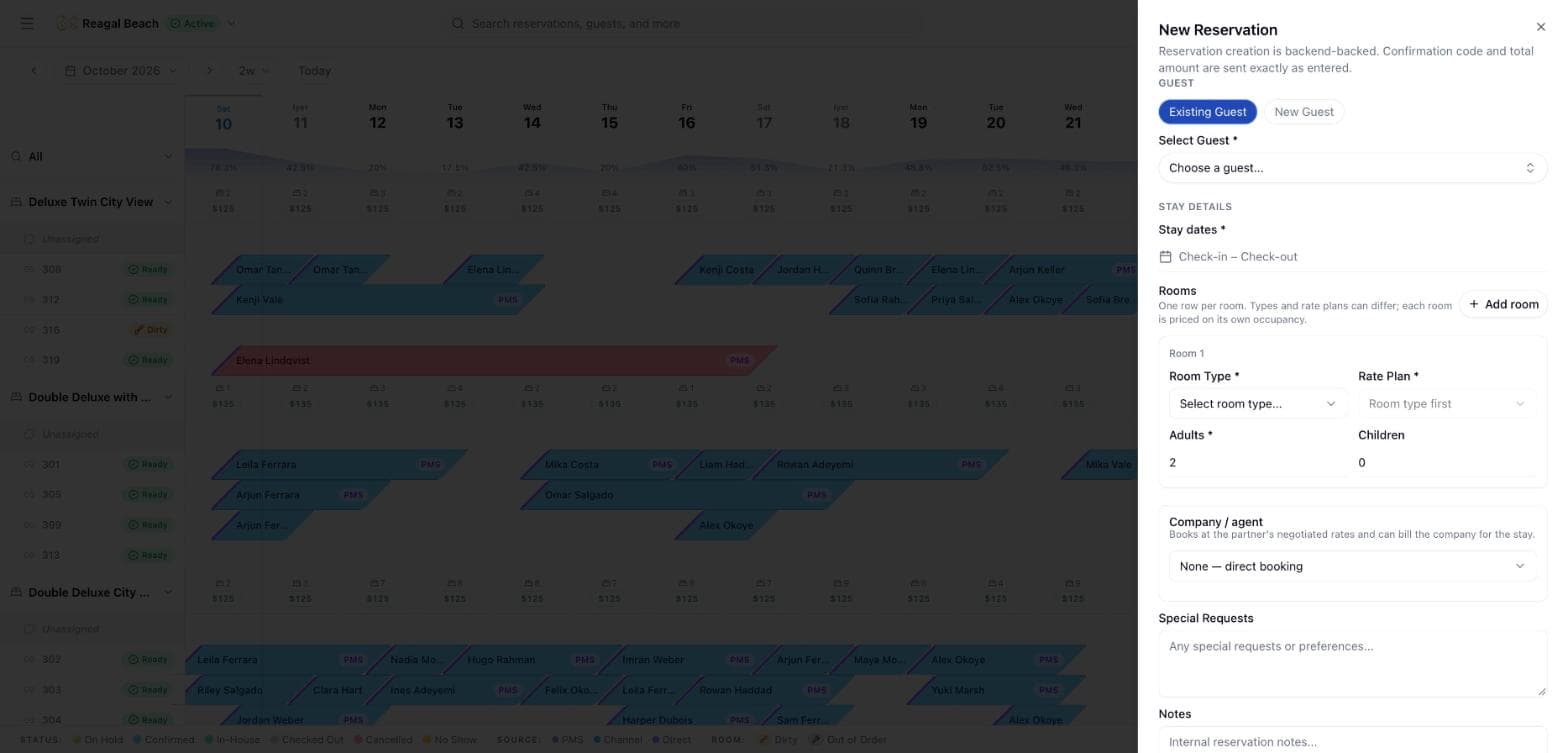
Innvera prices the stay on the server, not in the browser. As soon as every room row is complete, the Total box at the bottom asks the backend for a quote and shows the room charge and each tax line. The same rules run again when you submit, so the number you saw is the number that lands on the folio.
Before you start
- At least one room type must exist, and it needs a rate plan with a pricing option. The sheet says "Room types are required before reservations can be created." otherwise.
- Inventory must be configured for every night of the stay. If it is not, the server refuses with "Inventory is not configured for the entire stay".
- You need the
reservation → writepermission.
Create a reservation
Choose the guest
Under Guest, pick Existing Guest and choose from Select Guest (search by name, email or phone), or pick New Guest and fill in First Name, Last Name, Email, Phone and Country. First and last name are required for a new guest.
A new guest is always created as a fresh guest record; the staff form never merges by email. If the person already stayed with you, choose them under Existing Guest so their history stays on one profile.
Pick the stay dates
Under Stay Details, set Stay dates with the range picker. The dates belong to the whole booking: every room on it arrives and departs together.
Add the rooms
Rooms is a list with one row per room — "One row per room. Types and rate plans can differ; each room is priced on its own occupancy." Each row has a Room Type, a Rate Plan (the list is limited to the plans of that row's room type and shows "Name (CODE)"), Adults and Children, and the row header reminds you of the type's capacity: "Room 1 · up to 2 adults".
Click Add room for a second room, and the bin icon on a row to drop it. Both occupancy counts are capped by the row's own room type: "Maximum 2 adults for this room type", "Maximum 1 children for this room type". Changing a row's room type clears its rate plan, because a rate plan belongs to one room type.
Say who pays
Company / agent — "Books at the partner's negotiated rates and can bill the company for the stay." Leave it on None — direct booking for an ordinary guest booking. Pick a company or travel agent and a Who pays choice appears: Guest pays everything, Company pays room & tax, guest pays extras or Company pays everything, pre-set to that partner's own default.
A negotiated rate on the partner's contract prices the stay (in force as at the arrival date), and anything the company carries opens on a company window on the folio rather than the guest's. The sheet says so: "The company's share opens on a company window billed to Blue Horizon Travels and counts against its credit limit." A stay that would push the partner past its credit limit is refused. See Companies & Agents.
Notes, and a hold if the booking is not firm
Add Special Requests (guest-facing wishes such as a high floor) and Notes (internal, staff-only). Both show up on the Notes tab of the reservation.
Turn on Tentative hold if the guest has not committed: "Takes the room and inventory now but releases them automatically if not confirmed by the expiry. Defaults to the property's hold length." Hold until (optional) sets your own expiry. The booking is filed as On Hold rather than Confirmed; see Statuses and Lifecycle. The switch is not offered on a Walk-in, where the guest is already standing at the desk.
Check the total
The Total box reads "Select a rate plan and stay dates to calculate the total." until the quote can run, then "N nights — live quote" with the Room charge and one line per tax. The Create Reservation button stays disabled while the quote is loading or has failed, so you never submit a stale price.
Create
Click Create Reservation. On success the sheet closes and a toast reads "Reservation created successfully". The booking appears in Bookings and on the Calendar with its own booking reference.
The booking reference
Every reservation Innvera itself creates — from this sheet, from the Calendar, or from your own booking engine — is given a human reference of the form SUN-000123: the property's Booking Number Prefix (Settings → Property → General, two to five letters or digits), a hyphen, and the next number in a single per-property sequence. OTA bookings keep the channel's own confirmation code instead, because that is the number the guest has.
The reference is what every screen shows and what staff read out: the row in Bookings, the booking card, the Calendar bar's tooltip and quick-look card, the reservation header (with a copy button), the Overview tab's Reservation number / Confirmation code line, and the edit sheet's title ("Edit SUN-000123"). Searching Bookings matches it, as well as the guest's name or email and the OTA code.
Numbers are handed out inside the same transaction that saves the booking, so a booking that fails to save leaves a gap in the sequence rather than two guests sharing a number. Changing the prefix affects new bookings only.
What the server checks
The backend applies these rules in order and refuses the booking with a message if any fail:
| Rule | Message you will see |
|---|---|
| Check-out must be after check-in | "Check-out date must be after check-in date" |
| A rate plan is required and must belong to its row's room type | "Rate plan not found" / "Rate plan does not belong to the specified hotel and room type" |
| Rate plan currency must equal the property currency | "Rate plan currency does not match the hotel currency" |
| Each room's adults within the type's Max Adults, children within Max Children | "Adult count (3) exceeds the room type's maximum occupancy of 2 adult(s) per room for 1 room(s)" / "Child count (2) exceeds…" |
| Inventory rows exist for every night, with enough free units for the rooms of that type | "Inventory is not configured for the entire stay" / "Insufficient inventory for the requested stay" |
| Rate plan restrictions on the arrival date, for every plan on the booking | "Reservation cannot be created because arrivals are closed on the check-in date", "…minimum stay for the check-in date is N nights", "…maximum stay…", "…because the stay includes closed inventory" |
| A physical, free room exists for every row | "No physical room is available for 2 room(s) of the requested room type(s) for the requested stay" |
| A company-billed stay fits the partner's credit limit | "Blue Horizon Travels would exceed its credit limit: … against …" |
| A hold's expiry is in the future | "A hold must expire in the future" |
How the price is calculated
Each room is priced from its own occupancy: the rate plan pricing option for that row's adult count (or the plan's primary option when there is no exact match), times the nights, plus the plan's Children Fee per child per night. Two adults in one room and one in the other book the double and the single rate, not two doubles.
Taxes belong to the rate plan, so rooms are grouped by their (room type, rate plan) pair and each group's tax set is applied over that group's combined base: a per-booking tax is charged once, a per-room tax once per room, and percentage levels compound over the group's base. Tax lines for the same tax across groups merge into one folio line. A negotiated company rate or an agreed group rate replaces the plan's nightly figures while the plan still supplies the taxes, fees and restrictions. Per-date rate overrides from the rates calendar are not used on this path; see Rate Plans for the full derivation.
What happens after creation
- Status starts as
Confirmed, orOn Holdwhen Tentative hold was on. - Reference is allocated from the property's sequence.
- Room assignment happens automatically for every row: the server picks a free room of that row's type for the whole stay, never re-using a room it has already given to this booking. A room you swept on the Calendar is kept as long as the first row still has that room type; the whole booking is refused if even one room cannot be found.
- Inventory is decremented for every night, by as many units as there are rooms of that type, and an availability update is queued to Channex so connected channels close the units.
- Folio is created in the same transaction with one
Room Chargeline per room ("Room charge — Deluxe King — 2026-09-21 to 2026-09-23 (2 nights)") and oneTaxline per tax, so the ledger shows what each room was billed. No deposit is taken at creation; record one on the Folio tab with Record Payment and type Deposit. - Company window is opened and loaded with the partner's share when Who pays is not Guest pays everything.
- Notifications: a "New reservation" notification is raised for the property.
- Activity: a "Reservation created" entry is written to the audit log, naming the room count and — for a hold, a walk-in, a group or a company booking — which of those it was.
Tips
- Quote not appearing? Every room row needs a room type, a rate plan and at least one adult before the quote can run, and the stay must be at least one night.
- Guest list empty? The Select Guest field shows "No guests available" when the property has no guests yet. Switch to New Guest.
- Rooms cannot be added or removed after creation. Decide the room count here; see Multi-room Reservations.
- Wrong dates or room type after creating? Those fields are not editable in the edit sheet. Move the reservation on the Calendar instead; see Modifying Reservations.