

Rate Plans
Create and edit rate plans — sell mode, rate mode, pricing options, fees, restrictions, tax set and channel sync — and how a nightly price is derived.
A rate plan is the priced product for one room type: "Deluxe King — Best Available Rate, room only, 120 per night, minimum 2 nights at weekends". Every reservation is priced from one, the rates calendar edits one per date, and the channel manager pushes each one to the OTAs as a mapped rate. A room type can have several plans (BAR, non-refundable, breakfast included), and a plan can derive its price from another.
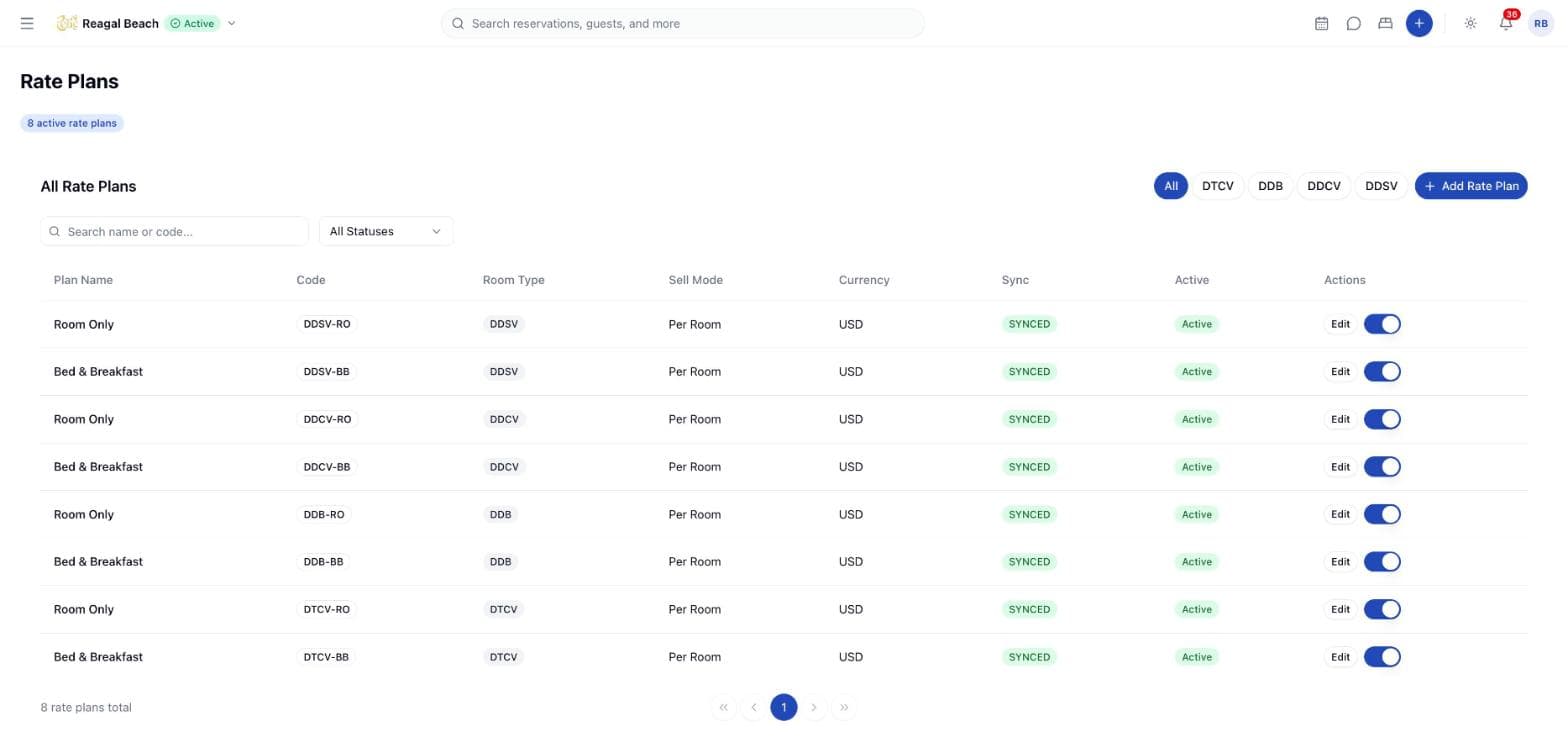
Rate plans are managed in two places. On Rooms → Room Types, a card's ⋮ → View Rate Plans opens the Rate Plans dialog for that type with Add Rate Plan, Edit and delete. The Rate Plans page (/rate-plans, also where a rate plan search hit lands) lists every plan across the property with room type filter buttons, a Search name or code box, an All Statuses / Active / Inactive filter, an Edit button and an Active switch per row.
Key terms
Pricing option — one price line on a plan: an occupancy and a nightly rate. Exactly one option is Primary.
Sell mode — Per Room (one option, whole room) or Per Person (one option per occupancy).
Rate mode — where the price comes from: Manual, Derived or Cascade from a parent plan, or Auto from Channex rules.
Restriction — stop sell, closed to arrival/departure, min stay (arrival/through), max stay — set per weekday on the plan and overridable per date.
Tax set — the group of taxes applied on top of (or inside) the plan's price.
Create a rate plan
Open the form
From a room type card choose ⋮ → View Rate Plans → Add Rate Plan, or click Add Rate Plan on the Rate Plans page. The sheet is titled Add Rate Plan.
Basic Information
Name * ("Best Available Rate"), Code * ("BAR" — fixed after creation), Room Type * (fixed after creation), Description, PMS Rate Code (optional external code), Tax Set (None or one of your tax sets; unsynced sets are marked "(not synced)") and the Active switch.
Rate Configuration
Currency is read-only: "Rate plans always use the hotel's currency — Channex ties currency to the property, not the individual rate plan." Choose the Meal Type (None, Breakfast, Bed & Breakfast, Half Board, Full Board, All Inclusive, Room Only and the rest of the Channex list), the Sell Mode and the Rate Mode.
DerivedandCascaderequire a Parent Rate Plan and show Derived Rules per option (Increase by amount,Decrease by amount,Increase by %,Decrease by %, applied left-to-right) plus an Inherit from Parent section with switches for Rate, Stop Sell, Closed to Arrival, Closed to Departure, Min Stay Arrival, Min Stay Through, Max Stay, Max Sell, Max Availability and Availability Offset.Autoshows an Auto Rate Settings (JSON) box for Channex's occupancy rules.
Pricing Options
Under Pricing Options enter the Rate for the option. With Per Person, click Add Occupancy to add rows with their own Occupancy and Rate, and tick Primary on exactly one ("Exactly one option must be marked as primary"). Switching to Per Room collapses the list to a single primary option. Add a Children Fee and Infant Fee (per child, per night; 0.00 by default).
Default Restrictions
Set Min Stay (Arrival), Min Stay (Through) and Max Stay in nights (0–365; 0 max stay means no limit), and the Stop Sell, Closed to Arrival and Closed to Departure switches. Each row has Same every day ticked; untick it to enter a value for Mon through Sun separately.
Create
Click Create Rate Plan. The plan is listed with sync status Pending until pushed to Channex.
Edit with Edit (sheet titled Edit Rate Plan, showing the sync badge; Save Changes). Toggle Active from the Rate Plans page switch. Delete from the room type's Rate Plans dialog: "will be permanently removed and will no longer be synced to Channex. This only fails if the rate plan has active reservations."
Per-date rates and restrictions
Weekly defaults on the plan are the baseline. To change a specific date or season, open Inventory in the sidebar: each rate plan has a row per occupancy (Rate) and rows for Stop Sell, Min Stay Arrival, Min Stay Through, Max Stay, Closed to Arrival and Closed to Departure. Edit a cell directly, or use the bulk editor to set fields across date ranges, weekdays and several rate plans at once. A date with its own value is an override (rendered bold); everything else falls back to the plan's weekly default. There is no separate "seasons" object — a season is a bulk edit over its date range.
How a nightly price is derived
When Innvera quotes or books a stay from a rate plan:
- Pick the pricing option. Adults per room = adults ÷ rooms, rounded up. The option with exactly that occupancy is used; if there is none, the Primary option is. A plan with no options fails with "Rate plan has no pricing options configured".
- Room stay = option rate × nights × rooms.
- Add children = Children Fee × children × nights. (The infant fee is stored for channels; staff bookings have no infant count.)
- Apply the tax set attached to the plan — or the property's default tax set when the plan has
None. Inclusive taxes are peeled out of the base, level 0 first and each higher level off what remains; exclusive taxes are stacked on top from the highest level down. See Taxes and Fees. - Total = base + exclusive taxes; the folio gets a
Room Chargefor the base less the inclusive amounts, plus oneTaxline per tax.
Where per-date overrides apply
Staff-created reservations, the reservation quote and re-pricing on edit or move all use the plan's option rate flat across every night — per-date overrides from the Inventory grid are not consulted. The booking engine does price night by night from the overrides. If a season price must reach walk-in and phone bookings, use a separate rate plan for it or adjust the folio.
Restrictions at booking time
Restrictions are checked against the arrival date, the way OTAs do it, for both new bookings and Calendar moves:
| Rule | Message |
|---|---|
| Stop sell on any night of the stay | "…because the stay includes closed inventory" |
| Closed to arrival on the check-in date | "…because arrivals are closed on the check-in date" |
| Nights below Min Stay (Arrival) of the check-in date | "…minimum stay for the check-in date is N nights" |
| Nights above Max Stay (when set) | "…maximum stay for the check-in date is N nights" |
Min Stay (Through) and Closed to Departure are synced to channels but not enforced on staff bookings.
Channel mapping
Each plan carries a Channex sync status (Synced, Pending, Processing, Retrying, Failed, Manual review). Innvera is the source of truth: the plan is created here and pushed out, and its Tax Set and restrictions travel with it. Mapping a plan to a specific OTA rate is done in the channel manager, not here; a booking arriving for an unmapped rate raises an "Unmapped rate on booking" notification.
Common mistakes
- Changing the room type or code after creation. Both are locked; create a new plan instead.
- Several primary options. Save fails until exactly one is ticked.
- Forgetting the tax set. With
None, the property default applies silently. If you have no default set, quotes carry no tax at all. - Deactivating a plan that reservations use. Existing bookings keep their price; the plan simply stops being offered and is skipped when a Calendar move needs a plan for a new room type.
Related
Room Types and Rooms
Set up room types with occupancy, dorm and photo settings, add the physical rooms, and manage each room's operational status on the Rooms page.
Policies
Check-in and check-out windows, cancellation tiers, pet, smoking and children rules, deposits and custom policies — and which of them the PMS enforces.