

Room Types and Rooms
Set up room types with occupancy, dorm and photo settings, add the physical rooms, and manage each room's operational status on the Rooms page.
Open Rooms in the sidebar. The page has two tabs. Room Types is a photo-card grid of your sellable categories, each with its capacity, room count and a thin bar showing the status mix of its rooms; the card's ⋮ menu leads to its rate plans and to editing or deleting the type. Room lists every physical room grouped by type, with a search box for "room number or type", and lets you flip a room between available, dirty and out of order.
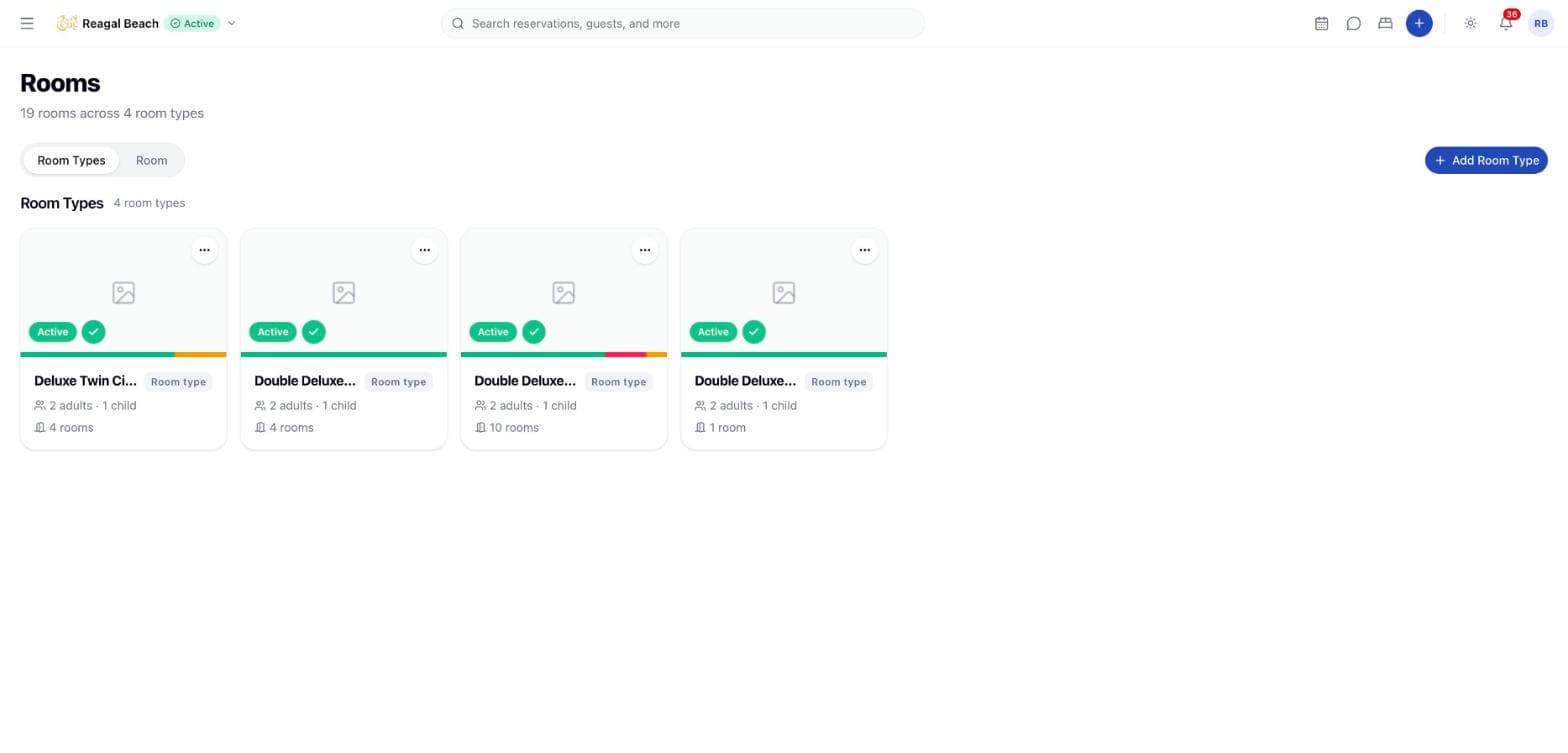
Room types come first: rooms, rate plans and inventory all belong to one. A room type also carries the Channex link (its sync badge shows Synced, Pending, Processing, Retrying, Failed or Manual review), so changes here flow to connected channels.
Key terms
Room type — a category you sell (Deluxe King). Has a short Code used in badges, room names and the rate plan filter.
Room — one physical unit (204) of a room type. Rooms are what get assigned to reservations.
Kind — Room (sold as a whole unit) or Dorm (sold by the bed; Dorm Capacity sets the beds).
Condition — the housekeeping state of a room: Ready, Clean (cleaned, awaiting inspection), Dirty, or blocked as Out of Order. Only Ready rooms can be assigned to a stay.
Create a room type
Open the sheet
On the Room Types tab click Add Room Type. The sheet is titled Add Room Type.
Fill in the fields
| Field | Rule |
|---|---|
| Name * | Required, e.g. "Deluxe King" |
| Code * | Required, up to 6 characters ("DK"); shown as a badge and used to name rooms |
| Kind | Room or Dorm |
| Room Count * | 1–999; the number of sellable units for inventory |
| Max Adults * | 1–20 per room; caps the Adults field on reservations |
| Max Children | 0–20 per room; caps Children on reservations |
| Default Occupancy * | 1–20, must not exceed Max Adults |
| Dorm Capacity * | Only for Dorm, 1–100 beds |
| Description | Optional free text |
Create
Click Create Room Type. The type appears in the grid as Active, with its sync badge Pending until the channel manager has pushed it.
Edit a type with ⋮ → Edit Room Type; the same sheet opens as Edit Room Type with Save Room Type. When editing, a Photos section appears at the bottom with Choose from gallery to attach images from the Media Library; the first image added becomes the Cover, and hovering a tile offers Set as cover and Delete image. See Facilities and Media.
Delete with ⋮ → Delete Room Type: "Its rooms, rate plans, and inventory will be removed along with it. This only fails if the room type has active reservations."
Beds, infants and amenities
The room type form does not capture bed configuration or an infant limit; infants are counted only on channel bookings. Amenities per room type are set on the Facilities & Amenities page, not here.
Add rooms
Open the dialog
On the Room tab click Add Room (enabled once at least one room type exists; otherwise "Create a room type before adding rooms.").
Enter the room
Choose the Room Type, enter the Room Number (1–9999, unique across the hotel) and optionally a Name. Leave the name blank to get "CODE-number", for example DK-204. The floor is derived from the number (204 → floor 2).
Create
Click Create Room. The room appears in its type's section as Available with condition Ready.
Rooms are added one at a time; there is no bulk "create N rooms" action. Rename or renumber a room with ⋮ → Edit Room (Title, Room number — "Must be unique across the hotel."), and remove it with ⋮ → Remove Room: "This only fails if the room has active reservations."
Room status
Each room card shows two things: the condition badge (Ready, Clean, Dirty, Out of Order) and the display status pill, which combines condition and occupancy:
| Status | Meaning |
|---|---|
Available | Vacant and ready to sell |
Occupied | A checked-in guest is in the room; the guest's name shows on the card |
Dirty | Vacant but needs housekeeping; cannot be assigned |
Out of Order | Blocked from sale; inventory for the type is reduced |
Change it from the card's ⋮ menu: Set Available, Set Dirty, Set Out of Order.
- Set Out of Order opens an open-ended block starting now, takes one unit out of the room type's inventory (and pushes the reduced availability to channels), and refuses assignment. It does not move reservations that already hold the room for coming nights — check the Calendar and move them yourself.
- Set Available or Set Dirty ends that block and gives the unit back.
- An Occupied room cannot change condition: "Occupied rooms cannot change operational condition". Check the guest out first.
- A room under a scheduled block (with an end date) cannot be toggled here: "Room has a scheduled block covering today; edit that block instead".
Coming soon: scheduled blocks and out of service
Date-bounded blocks with a reason (Maintenance, Deep clean, Renovation, Other) exist in the backend and show on the Housekeeping rooms board as "Maintenance · note", but there is no screen to create or edit them yet — only the open-ended Set Out of Order toggle. A separate "out of service" state (unsellable but not inventory-reducing) is not available.
Rooms and reservations
- When a reservation is created, the server auto-assigns a
Readyroom of the type that is free for every night;Dirty,Cleanand blocked rooms are skipped. - The Calendar and the Change room dialog refuse dirty and out-of-order rooms ("Dirty — not assignable").
- Check-in marks the room
Occupied; check-out marks itVacantandDirtyand raises a departure clean. See Statuses and Lifecycle.
Tips
- Keep codes short and unique — they appear in room names, badges and rate plan filters.
- Room Count drives inventory, rooms drive assignment. Both should match; a type with Room Count 10 but only 8 rooms will sell 10 units and fail to assign the last two ("No physical room is available…").
- Use the search on the Room tab with a type name to see that whole section, or a number to jump to one room. The housekeeping board links here as
/rooms?tab=status&room=204.
Related
Overview
The product you sell — room types and physical rooms, the rate plans that price them, and the policies, taxes, facilities and photos that go with them.
Rate Plans
Create and edit rate plans — sell mode, rate mode, pricing options, fees, restrictions, tax set and channel sync — and how a nightly price is derived.