

Inventory and Availability
The availability, rates and restrictions grid by room type and date — editing cells, selecting ranges, bulk updates, and how a save reaches your channels.
Inventory (/inventory-management) is the grid that decides what the property can sell, for how much, and under what conditions. Rows are your room types with their rate plans nested under them; columns are dates. It is the one screen where you close a date, drop a price for a soft week, or set a two-night minimum over a holiday — and it is the source every channel and the booking engine sells from.
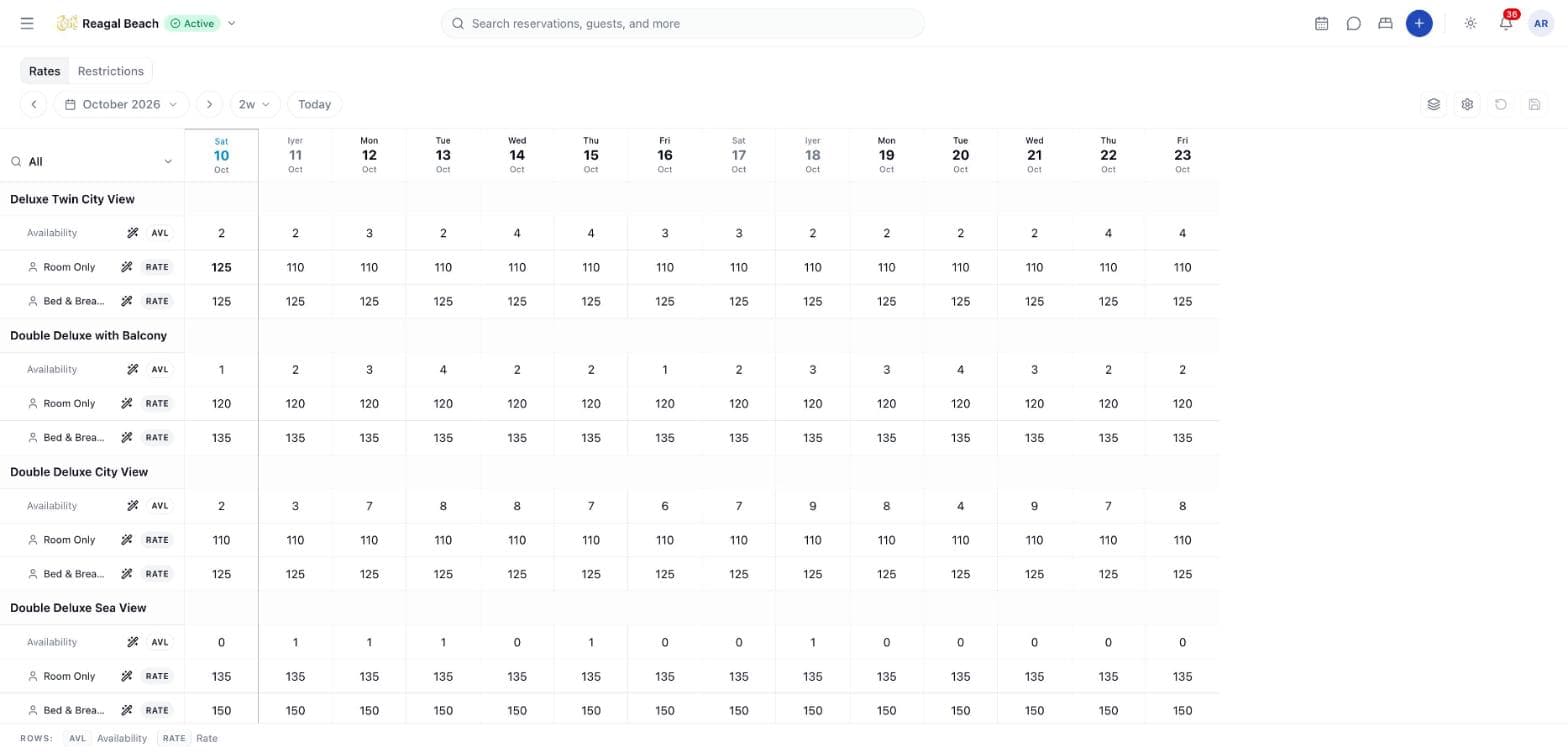
Unlike the rest of the PMS, this page does not save as you type. Every edit is staged as a draft, the grid marks it, and nothing leaves your browser until you press Save and confirm the review. That is deliberate: a save goes out as a single request and a single push to your channels, so a week of price changes is one clean sync rather than thirty.
Where it lives
Front Desk → Inventory in the sidebar. Reading the grid needs the Inventory: read permission; changing availability needs Inventory: write, and changing prices or restrictions needs Rate plan: write. The Front Desk system role has read only, so an agent sees the numbers but cannot save. See Roles and Permissions.
Key terms
Availability — AVL, the units of a room type free to sell on a date. Innvera keeps it moving on its own as bookings land and cancel; editing it here overrides that number.
Total units — how many units of the type exist on that date. Availability can never exceed it.
Availability offset — AVO, units held back from channels. Subtracted from availability before the push; your own number is untouched.
Max availability — MAL, a ceiling on how many units are offered in total. Units already sold count against it.
Restriction — a per-rate-plan, per-date rule: Stop Sell, Min Stay Arrival, Min Stay Through, Max Stay, Closed to Arrival, Closed to Departure.
Reading the grid
The Rates / Restrictions tabs at the top left switch which rows are drawn. Both always show availability.
Under each room type's name band sits a row of N avail counts — red at 0, amber at 2 or fewer. Then:
| Row | Badge | Shown in | What it holds |
|---|---|---|---|
| Availability | AVL | both tabs | Units free to sell for that room type and date |
| One row per active rate plan | RATE | Rates | The nightly price. A per person plan draws one row per occupancy, with a people icon and the guest count; a per room plan draws one row with a single-person icon. A price that overrides the plan's base rate is shown in bold. |
| Stop Sell | SS | Restrictions | On closes the rate plan for that date |
| Min Stay Arrival | MSA | Restrictions | Minimum nights for a stay arriving that date |
| Min Stay Through | MST | Restrictions | Minimum nights for a stay passing through that date |
| Max Stay | MXS | Restrictions | Maximum nights |
| Closed to Arrival | CTA | Restrictions | On means no stay may start that date |
| Closed to Departure | CTD | Restrictions | On means no stay may end that date |
The same codes are spelled out in the legend along the bottom of the page.
Only active rate plans appear. Past days are tinted and today's column is outlined. A cell showing - (rates) or 0 (availability) has no inventory row behind it for that date, which means genuinely unsellable rather than missing — it cannot be edited in place; use a bulk update to create the rows.
The first column is frozen and carries a room-type filter: click it to search your types and pick one, or All room types to show everything.
Navigate dates
The grid opens on today plus 13 days.
- ‹ and › shift the window by its own length.
- The date range picker sets any start and end; the span dropdown (1w, 2w, 3w, 30d) sets the length from the current start.
- Today jumps the window back to today, keeping its length.
- At most 30 days are drawn. Pick more and Showing the first 30 days of the selected range appears under the toolbar. Ranges are capped at 183 days (about six months), noted as Date range is limited to 183 days (about 6 months).
Staged edits survive moving the window — they are remembered against the room type, date and field, not against a position on screen — so a long range can be staged a window at a time and saved in one go.
Edit a cell
Click the cell and type
Availability, rates and the numeric restrictions are number inputs; Stop Sell, CTA and CTD are toggles. The cell marks itself as changed and the Save button turns solid with a count.
Keep going
Edit as many cells, rows, room types and date windows as you need. Typing a value back to what it was removes the draft again.
Save
Save opens Review changes: N staged · will sync to channels, then one block per room type and rate plan listing each change as field · date with its before and after value. Cancel goes back to the grid with everything still staged.
Confirm
A N changes saved. toast confirms it, the grid reloads from the server and the drafts clear.
The reset button (the circular arrow) discards every staged change after a Discard unsaved changes? confirmation. Refresh, under the gear, reloads from the server; with drafts pending it first warns Refreshing will reload data from the server. Your unsaved edits will stay staged, but the numbers on screen may no longer match what you will save. Leaving the page with unsaved edits prompts the browser's own warning.
A failed save writes nothing
The whole batch is applied in one database transaction. If the server rejects any part of it — most often availableUnits must be less than or equal to totalUnits — nothing at all is written, the message appears as a red toast, and every draft stays staged so you can fix the offending cell and save again.
Change a whole range at once
Three tools, in increasing order of reach.
Select cells
Hold ⌘ / Ctrl and click cells to add them to a selection, or ⌘ / Ctrl-drag across a run of days for a range. Esc clears it. The modifier is required because an unmodified click still has to mean edit this cell.
A selection lives inside one row, since one row is one series and one value can mean the same thing across it. The footer replaces the legend with Update selected and Clear. Update selected opens Update N cells, which offers:
- How — Set to a value, or, for prices only, Increase / decrease.
- The value itself: a number, or On / Off for a toggle row.
- For a price adjustment, a + / − direction and a unit of Percent or Fixed amount.
- A Preview of the resulting values before you apply them.
Applying stages the cells as ordinary drafts — you still have to Save.
Fill a range from a row
The wand button beside a row's label opens a small From / To / Value popover over the visible dates. It is quicker than selecting when you want the whole fortnight at one number.
Bulk Update Inventory
The layers button in the toolbar opens the Bulk Update Inventory sheet, which reaches beyond the visible window and beyond one row:
| Section | What you set |
|---|---|
| Date ranges | One or more start–end ranges; add and remove them freely |
| Weekdays | Which of Mon–Sun inside those ranges are affected |
| Availability (room types) | Which room types, and which of Available Units, Total Units, Availability Offset (AVO), Max Availability (MAL) to set |
| Rate & restrictions (rate plans) | Which rate plans, and which of Rate and the six restrictions to set. A per-person plan can take a price per occupancy. |
Each field has its own tick box — only ticked fields are written, so you can raise the rate over every Friday in a quarter without touching anything else. Both room-type and rate-plan lists have a search box.
The sheet refuses to submit until it makes sense, with a toast saying why: Enable at least one field to update., Select at least one room type for availability updates., Select at least one rate plan for rate/restriction updates., Availability cannot exceed 999., Rate cannot exceed 1,000,000., Stay nights cannot exceed 365. On success the toast reports N updated, M created — "created" counts date rows that did not exist yet.
Bulk updates save immediately
Unlike grid edits, the bulk sheet writes as soon as you submit. There is no review step and no undo — check the date ranges and weekdays before pressing the button.
What moves availability on its own
You rarely have to type an availability number. Innvera adjusts it as the property runs:
| Event | Effect on availability |
|---|---|
| A reservation is created (PMS, booking engine or channel) | Decremented for each night of the stay |
| A reservation is cancelled, marked no-show, shortened or moved away | Released back, never above total units |
| A room is added to a room type | Total units and availability increased by one, from today forward |
| A room is deleted | Both decreased by one |
| A room is blocked out of order | Availability decreased by one for the blocked nights; restored exactly when the block is lifted |
Editing the Availability row overrides whatever that arithmetic produced. Use it to hold rooms back or to correct a drift — not as a routine way to open and close dates, which is what Stop Sell and a 0 are for.
How channels consume it
Every save writes one message to the outbox, and a worker pushes the affected room types and date spans to Channex within seconds; Channex fans it out to every mapped channel. A multi-room-type, multi-date save is delivered as one call, which is why the grid batches rather than saving per cell.
The number a channel sees is not always the number in the cell:
- AVO is subtracted first. Availability
10with an offset of2is pushed as8, while the PMS still shows10. - MAL caps the total offered, and units already sold eat into the cap. With 10 units, a
MALof8and one booking, the push is7. - Neither ever goes below
0.
To close a rate plan on some dates, switch its Stop Sell on. To close a room type, set its availability to 0 — availability applies to every rate plan under the type. The full picture, including retries, failures and manual resyncs, is in Availability and Rate Sync.
Empty states and errors
| Message | Meaning |
|---|---|
| Create a room type before managing inventory. | The property has no room types yet — start in Room Types and Rooms |
| No room types or rate plans match the current filters. | The room-type filter has excluded everything |
| Failed to load inventory. / Failed to load rates. | The grid could not read from the server; use Refresh under the gear |
Common mistakes
- Leaving the page with the Save button still solid. Staged edits are only in your browser. The browser warns you, but the warning is easy to click through.
- Raising availability above total units. The save is rejected whole. Set Total Units in the bulk sheet first if the property genuinely has more rooms.
- Using bulk update as a draft. It writes straight away; only the grid stages.
- Expecting a cell edit to fix an OTA. The push is one-way. A channel that is out of step needs a resync from Settings → Channel Manager, not another edit here.
Related
Bookings List
The Bookings table — its columns, server-side search, the status, source, date and sort filters, paging, and opening a reservation from a row.
Guests
The guest list and profile — the fields Innvera keeps, search and sorting, stay history, the check-in readiness checklist, notes and duplicates.