

Guests
The guest list and profile — the fields Innvera keeps, search and sorting, stay history, the check-in readiness checklist, notes and duplicates.
Guests (/guests) is the property's directory of people. Every reservation points at a guest record, and that record is where the details that do not belong to a single stay live: contact numbers, the identity document you check them in against, their home address, and the internal notes the next shift should read. Open one and you get their whole history with the property on a single page.
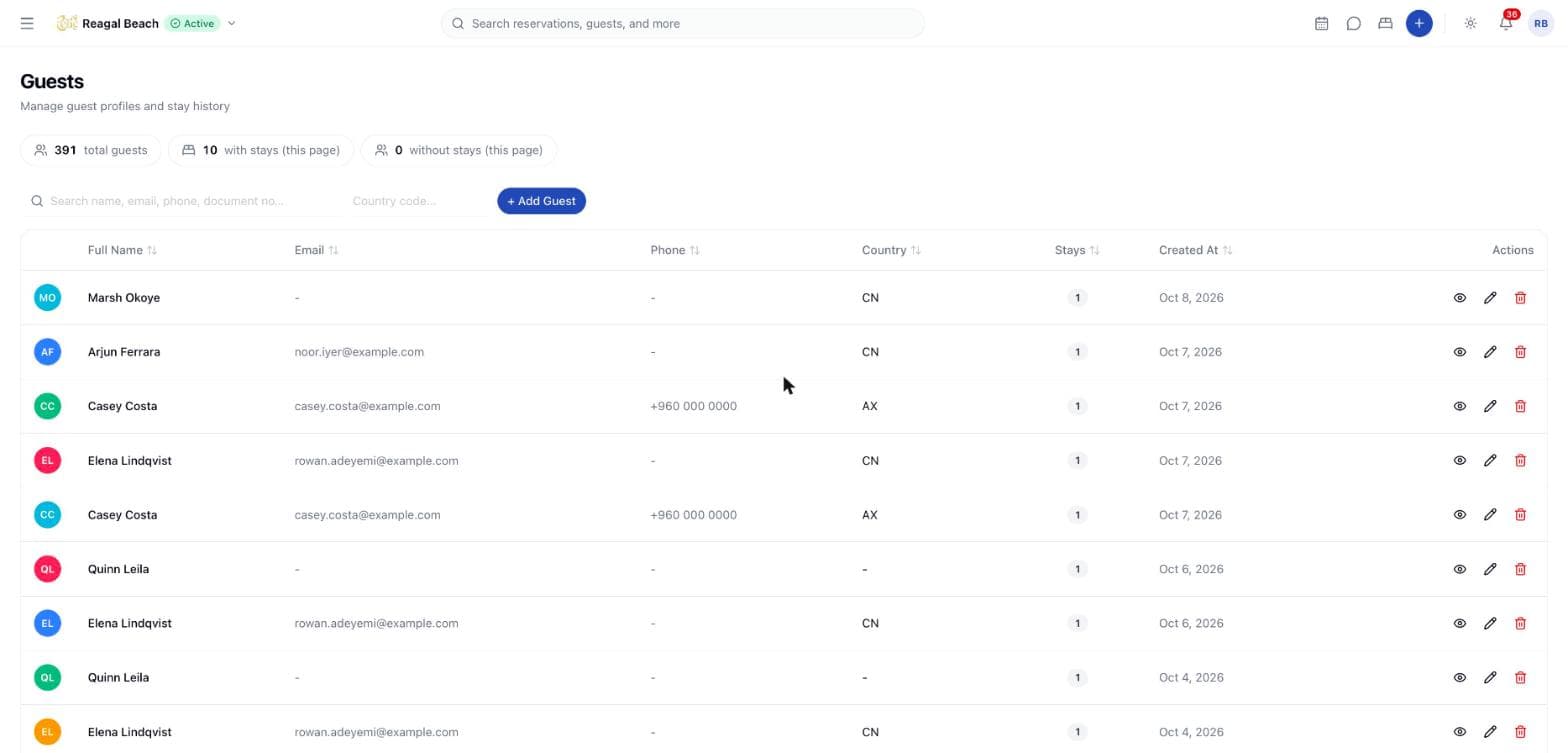
Guest records are created three ways: by hand from this page, from the New Guest tab in the reservation sheet, and automatically whenever a booking arrives. What you do here is keep them accurate — complete the gaps before arrival, record preferences, and tidy the duplicates the channels leave behind.
The list
The header carries three counts: total guests, which is the property's real total, and with stays and without stays, which are counted from the page you are looking at and labelled (this page) because of it.
| Column | Sortable | Notes |
|---|---|---|
| Avatar | — | Initials, tinted per guest |
| Full Name | Yes | Sorts on last name |
| Yes | - when nothing is on file | |
| Phone | Yes | |
| Country | Yes | The two- or three-letter country code |
| Stays | Yes | Every reservation ever attached to the guest, cancellations included; - at zero |
| Created At | Yes | The day the record was made |
| Actions | — | View, edit and delete |
The list is newest-first until you sort it, and pages 10 guests at a time with Showing 1–10 of N guests under the table. Click any row to open the guest; the eye button does the same.
Search and filter
The search box — Search name, email, phone, document no… — queries the server as you type, with a short pause so every keystroke is not a request. The filter control beside it takes a Country code; on a phone both collapse into a filter sheet with a count badge and Clear.
Search does not reach the document number
Despite the placeholder, the list search matches first name, last name, email and phone only. The identity document number is stored on the profile but is not indexed, here or in global search. To find a guest by document, open the likely records and check the Identity document section.
The navbar's global search (Search reservations, guests, and more) also returns a Guests group and jumps straight to a profile; it matches name, email and phone.
Profile fields
These are the fields Innvera keeps on a guest, as they appear in Add New Guest and Edit profile. Only the two names are required.
| Field | Required | Notes |
|---|---|---|
| First Name | Yes | |
| Last Name | Yes | |
| No | Must be a valid address if given — Must be a valid email address | |
| Phone | No | Free text, so international formats are fine |
| Country | No | Picked from a country list; drives the flag on the profile and the Country column |
| ID Document Type | No | Passport, National ID or Driver's licence |
| ID Document Number | No | Masked on the profile until revealed |
| Date of Birth | No | The profile shows the age beside it |
| Address Line 1 | No | |
| Address Line 2 | No | |
| City | No | |
| Postal Code | No | |
| Notes | No | Internal notes about this guest… — never shown to the guest |
Creating a guest raises a Guest <name> created successfully toast; an edit raises Guest profile updated.
The copy of the document is attached per person, not to the profile
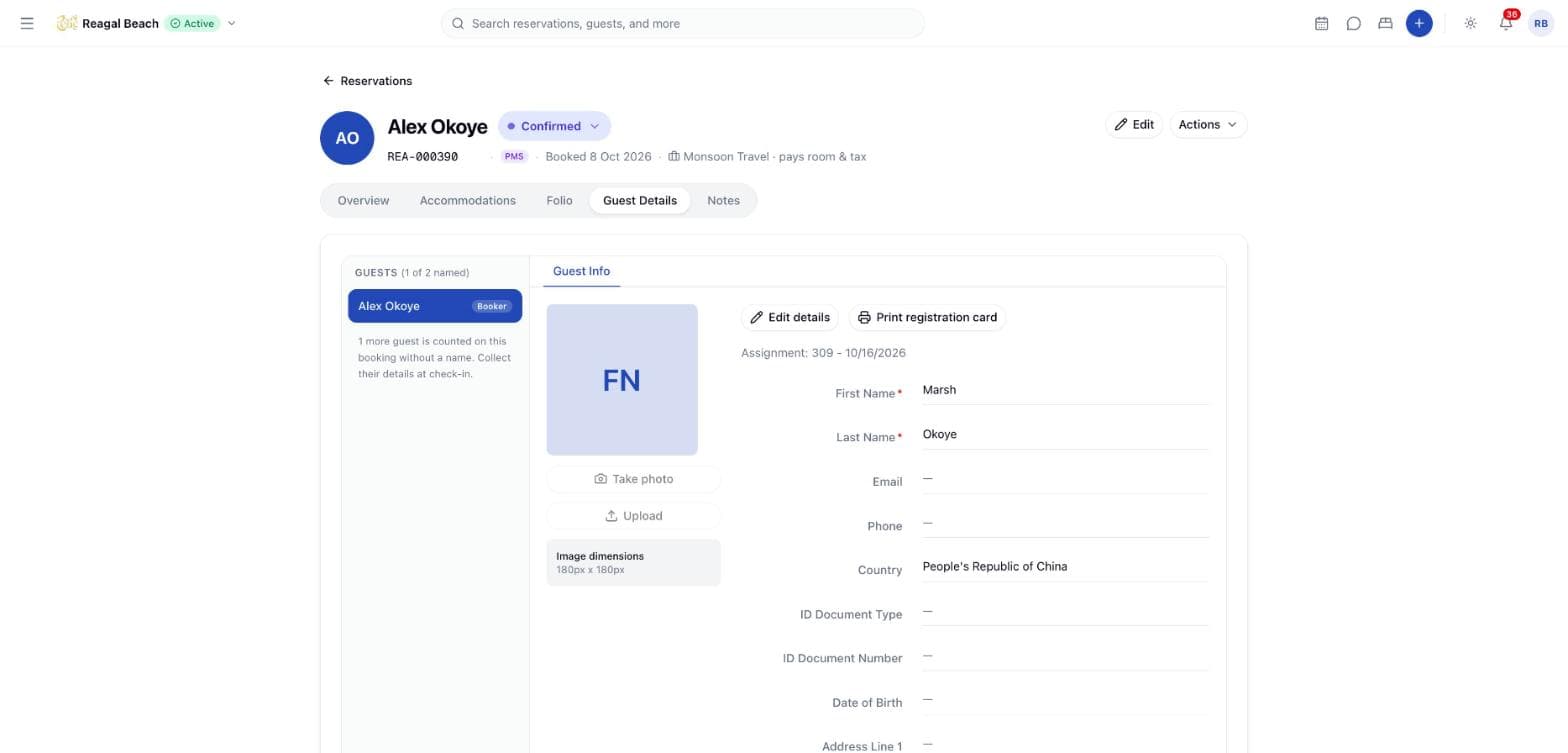
These fields record the document's type and number as text. The copy of it — a photo of the passport page, a scan of an ID — is attached to the person on a reservation's guest register, which is where the desk is holding the document anyway. See ID copies.
ID copies
Innvera keeps copies of what someone showed at the desk against the person on a reservation's guest register. You attach them in two places, both the same control:
- The Guests step of the check-in dialog — see Arrivals and Check-in.
- The reservation's Guest Details tab, any time before or during the stay.
Each saved person's card carries an ID copy block: pick the document type — Passport, National ID or Driver's licence — press Attach, and choose the file. A person who has not been saved to the register yet has nowhere to put a copy, and says so: Save the guests to attach a passport or ID copy for this person.
| Rule | Value |
|---|---|
| Accepted formats | JPEG, PNG, HEIC, WebP and PDF — A guest document must be a JPEG, PNG, HEIC, WebP or PDF |
| Maximum size | 10MB — A document must be 10MB or smaller. |
| What is listed | The file's own name, its type and its size |
Click a listed copy to open it. The file is never held in a link on the page: a short-lived signed link is minted when you click and lives five minutes, so nothing pointing at a passport scan survives in a browser history or a cache. Removing one always confirms — Remove this document? — and the copy is only soft-deleted, so it leaves the list but the record of it remains.
A finished stay's register is read-only
The register — names and ID copies alike — is editable while the reservation is Confirmed or In-House. On a cancelled, no-showed or checked-out stay it is a record of what it was, and the copies can be opened but not changed: You can view but not change ID copies. Changing the register needs Reservation: write, which the Front Desk role has.
The guest page
Open a guest and the masthead shows their name, their country's flag, and one live fact about them, linked to the reservation it came from:
- In-house · departs
<date>— they are in a room right now. - Arriving today / Arriving tomorrow / Arriving in N days ·
<date>— their next confirmed stay. - Last stayed ·
<month year>— nothing ahead; this is the most recent stay behind.
Below it sit the email and phone as links — click to mail or dial, or use the copy button — and Guest since <month year>. Edit profile opens the same form as the list; the ⋯ menu holds Delete guest.
Two tabs follow: Stays with a count, and Profile.
Stays
The stay ledger opens with a summary line — N stays · N nights · N cancelled · N no shows — where cancellations and no-shows are counted but excluded from the stay and night totals, because the guest was never in the room.
Stays that are still ahead or still running are grouped under Now and next, soonest first. Everything else is grouped by the year it started, newest first; cancelled and no-show bookings always fall to the past and are dimmed. Each row shows the date range, the nights and rooms, and the reservation's status badge — Confirmed, In-House, Checked Out, Cancelled, No Show — and links to the reservation.
A guest with no history gets No stays yet and a note that their history will build up after the first reservation.
Profile
Four sections, each saying plainly when it is empty:
- Identity — Date of birth (with the age) and Nationality, or Not recorded.
- Identity document — Type and Number. The number is masked; the eye button reveals it, because the screen often faces the lobby. With nothing on file: No document on file. Add one so the registration card can be completed at check-in. and an Add photo ID button.
- Address — the address as it would be written on a registration card, or No address on file. with Add address.
- Notes — free text, or Nothing noted yet. Record preferences, allergies, or anything the next shift should know.
A Ready to check in panel on the right tracks the three things a registration card needs:
| Item | Counted as met when |
|---|---|
| Contact details | The guest has an email or a phone |
| Photo ID | Both document type and document number are on file |
| Home address | Both address line 1 and city are on file |
Each unmet item has an Add link that opens a small focused dialog — Add contact details, Add photo ID or Add home address — asking only for that section's fields. When all three are met the panel reads Everything the registration card needs is on file. The panel is guidance for the desk, not a gate: check-in itself does not test any of it.
Under it, Record shows the Guest ID with a copy button, and when the record was Created and Last updated.
Where guest records come from
| Source | Behaviour |
|---|---|
| + Add Guest on this page | A new record, exactly as you type it |
| New Guest in the reservation sheet | A new record created with the booking. Existing Guest instead searches by name, email or phone and reuses one. |
| Booking engine (direct online booking) | Reuses an existing record when the email matches one at the property; otherwise creates a new one |
| Channel booking (OTA) | Always creates a new record, with whatever name, contact and partial address the channel sent |
Merging duplicates is coming soon
There is no merge action and no duplicate detection in Innvera. Because every OTA booking creates a fresh record, a regular guest who books through different channels will accumulate several — each with its own slice of the stay history. You can delete a duplicate only while it holds no reservations, so in practice you keep the fullest record, complete it by hand, and leave the rest. Do not expect the Stays count on any one record to be the guest's whole history with you.
Delete a guest
The trash button in the list, or Delete guest in the profile's ⋯ menu. The confirmation says This removes the guest record. Their past reservations stay in the system. This cannot be undone.
A guest attached to any reservation — including cancelled ones — cannot be deleted; the server refuses with Guest cannot be deleted while reservations exist. That leaves deletion useful mainly for records created in error. Deleting also needs the Guest: delete permission, which the Front Desk role does not have.
Tips
- Complete the profile before arrival, not at the desk. The Ready to check in panel tells you exactly what is missing, and each gap dialog is three fields.
- Put anything the next shift needs in Notes. Allergies, a preferred floor, a difficult previous stay — it is internal and it travels with the guest, not the stay.
- Reuse a guest when creating a reservation. Picking Existing Guest keeps one history instead of two.
- Take the ID copy at the desk, on the register. Keying the number onto the profile and attaching the copy to the person staying are two different jobs, and the copy is the one an inspection asks for.
- Read the Stays summary, not the Stays count. The column counts every reservation; the ledger separates the ones that actually happened from cancellations and no-shows.
Related
Inventory and Availability
The availability, rates and restrictions grid by room type and date — editing cells, selecting ranges, bulk updates, and how a save reaches your channels.
Overview
Everything about a booking in Innvera, from a tentative hold or a firm booking through check-out, cancellation or no-show.