

Calendar
The room-by-night grid — reading bars and badges, filtering and navigating dates, sweeping empty cells to book or hold a room, and dragging a stay to move it.
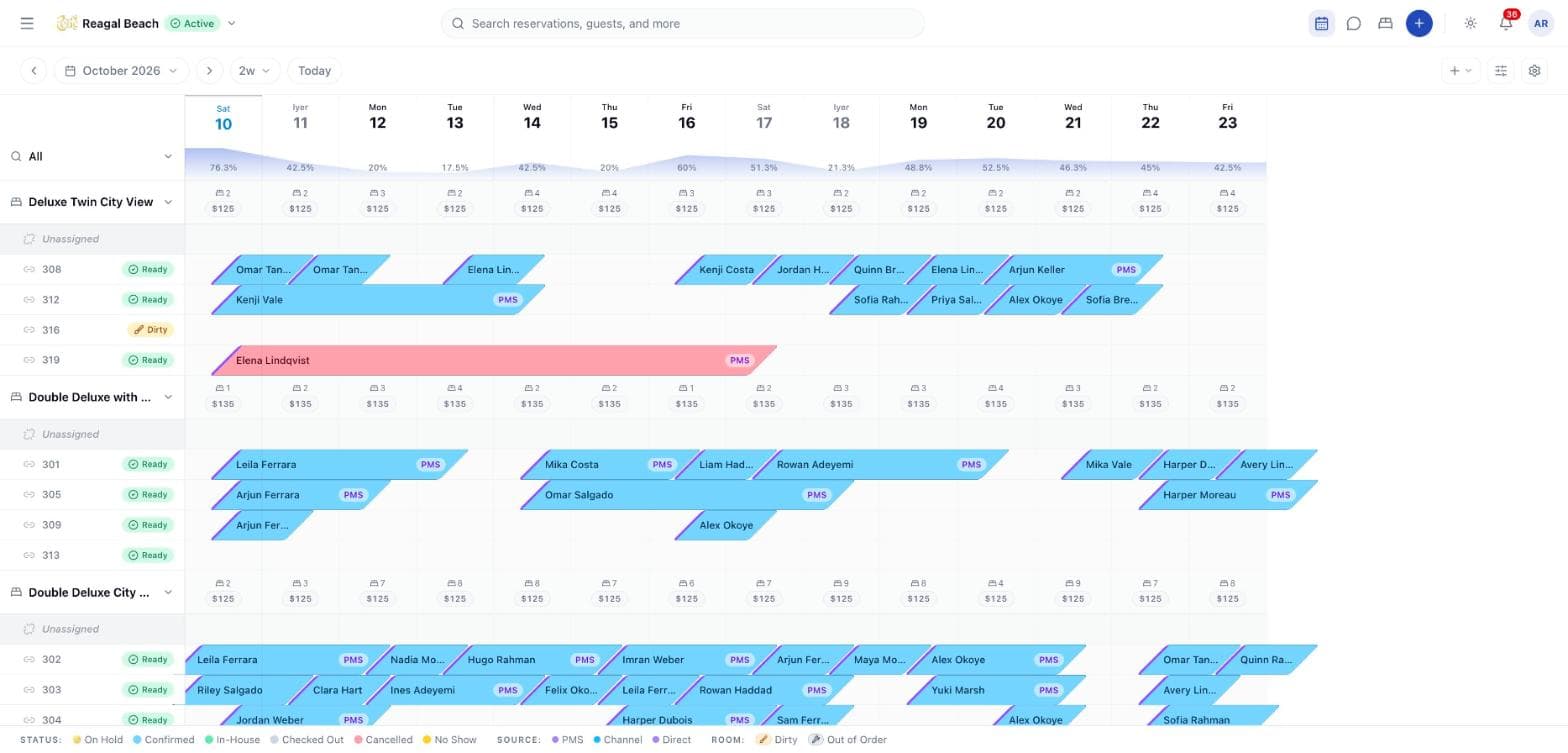
The Calendar (/calendar) draws every reservation as a bar on a grid of rooms by nights. Rows are your physical rooms, grouped under their room type, each type topped by a summary row with the day's free count and rate and an Unassigned row for stays that have no room yet. Columns are nights. It is where the desk sees at a glance who is where, spots an arrival with no room, takes a booking straight off the grid, and moves a stay with the mouse instead of a form. Click any bar to open the reservation's detail sheet.
Reading the grid
Bars run from the check-in day to the check-out day, starting and ending mid-cell so a departure and an arrival on the same day sit side by side in one room. A bar shows the guest name and, when wide enough, the source badge; hover for the full tooltip (guest, dates, source and OTA code). A multi-room booking draws one bar per room, each labelled Room 1 of 2 and so on.
Colours encode status and are repeated in the Status: legend at the bottom: On Hold (amber, hatched), Confirmed (blue), In-House (green), Checked Out (grey), Cancelled (red), No Show (amber). The coloured left edge and the Source: dots encode origin: PMS and Direct (violet) or Channel (sky blue).
Room badges on the row label show housekeeping condition, and the two that matter are listed under Room: in the legend:
- Dirty — Dirty — needs housekeeping before assignment. A brush badge, no row tint.
- Out of Order — Out of order — not assignable. A spanner badge, and the whole row is washed grey.
A Ready room carries no badge, because only a blocked room is worth marking.
Room type header row — one per type, with a chevron to expand or collapse its rooms. Each day cell shows the number of free rooms (real rooms minus stays that night, excluding cancelled and no-shows) and the day's rate for the type's representative rate plan.
Date header — above the days, a shaded band traces average occupancy across the visible window (all types, or the filtered type). Past days are tinted.
Unassigned row — the first row under each type, marked with a broken-link icon. A reservation lands here when it has no room: usually a channel booking whose room type could not be placed automatically, or a stay you unassigned. Arrivals in this row need a room before you hand over a key.
Navigate dates
The toolbar opens on today plus 13 days (2w).
- ‹ and › shift the window backwards or forwards by its own length.
- The date range picker sets any start and end; the span dropdown (1w, 2w, 3w, 30d) sets the length from the current start.
- Today jumps the window to start today, keeping its length.
- The grid shows at most 30 days at a time. Pick a longer range and the notice Showing the first 30 days of the selected range. appears; ranges beyond about six months are cut with Date range is limited to 183 days (about 6 months).
The grid scrolls sideways; the room column stays frozen.
The grid loads the whole window
The Calendar asks the server for every stay touching the visible dates, however many pages that takes — not the first page of the booking list. Move the window and it fetches again, so a stay six months out is drawn as soon as you look at those nights.
Filter
The Filters button (sliders icon; a badge counts active filters) opens Status, Source and Room type. Choosing a room type also collapses every other type so only that one is expanded. Clear all resets. The + dropdown offers New Reservation; the gear offers Refresh.
The Status filter lists Confirmed, In-House, Checked Out, Cancelled and No Show. There is no entry for On Hold — holds are always drawn, and their hatched amber bars are easy enough to pick out.
Book or hold from an empty cell
Press on an empty day cell of a real room's row and drag along it to pick the nights. The swept cells highlight, the sweep stays on the row it started on — a booking is one room — and past days cannot be swept. Release and a dialog opens, headed with the room, its room type, the nights you chose (Thu, Oct 9 → Sat, Oct 11 · 2 nights) and, where the chart has rates for those dates, about <amount> as a hint for the phone call. The server prices the booking itself; the estimate is not a quote.
Two things a swept run can become:
New booking — The full form with this room and these nights filled in. The creation sheet opens with the room type, the room and the dates already set, and the booking is pinned to that exact room rather than any free room of the type. Everything else — guest, rate plan, occupancy, price, company, tentative hold — is the ordinary form, documented in Creating Reservations.
When the sweep is refused
| Message | Why |
|---|---|
| Part of this run is already booked. Pick free nights, or another room. | A live stay covers one of the nights you swept. |
<Room> is out of order and cannot be booked. | The room has an out-of-order block. |
Housekeeping condition does not stop a booking. A dirty room is a perfectly good room for next week — housekeeping will have turned it long before — so only an out-of-order room is refused. Where the stay starts today and the room is still dirty, the dialog adds an amber note: <Room> is still dirty. Housekeeping needs to turn it before the guest can check in today. You can still take the booking.
Move, resize, reassign, unassign
Every change to an existing stay is a drag followed by a confirmation dialog, so nothing is saved by accident.
Drag the bar
Grab the middle of a bar to move it across days and rooms. Grab its left or right edge (the cursor changes) to resize the arrival or departure day. A ghost bar follows the pointer.
Watch the ghost
A red ghost with ⚠ Conflict means the target room already has a stay on one of those nights. ⚠ Dirty or ⚠ Out of Order means the target room cannot take a guest. Release on a refused target and the bar snaps back; nothing is sent.
Confirm the change
Releasing on a valid target opens a dialog named for what you did — Move Reservation, Change Length of Stay, Move to Different Room, Move to Different Room Type or Unassign From Room — showing the guest, source, and before/after Check-in, Check-out, Nights or Room. If you moved to another room type and the booking is priced, pick a rate plan for the new type before Confirm enables; the server re-prices the stay and posts an adjustment to the folio.
On success a Reservation moved toast appears and the grid updates. The server can still refuse for reasons the grid could not see; the message is shown as a toast.
| Refusal | Why |
|---|---|
| "A checked-in reservation cannot be moved to another room type" | An in-house guest can only change room within their type (channel bookings excepted, since that is their only upgrade window). |
| "The check-in date of a checked-in reservation cannot be changed" | The guest has already arrived. |
| "Channel bookings cannot change room type before check-in — Channex does not update the OTA." / "…cannot have their dates changed before check-in…" | Innvera does not push these back to the OTA; amend the booking on the channel, or check the guest in first. |
| "Room is dirty and must be cleaned before an in-house guest can be moved into it" / "Room has been cleaned but not yet inspected; an in-house guest cannot be moved into it yet" | Moving an in-house guest needs a Ready room; cleaned-but-uninspected is not ready. |
| "Room is blocked (out of order) for part of the selected stay" | An out-of-order period overlaps the nights. |
| "Insufficient inventory for the requested stay" | The new dates or type have no units left. |
| "Only confirmed or checked-in reservations can be moved" | The booking is cancelled, no-showed or checked out. The one exception is giving the room back — see below. |
Dropping a bar on a type's Unassigned row unassigns it. A checked-in stay cannot be unassigned (The guest is checked in to this room — check them out first), but a finished booking can: a cancelled, no-showed or checked-out reservation that still holds a room leaves a bar nobody will sleep in, and dropping it on Unassigned releases the room while the segment keeps its type, dates and price.
Overbooking and gaps
The Calendar will not let you drop two stays on the same room for the same night, and the server rejects it too, so a room row can never show an overlap. Overbooking at the room type level — more stays than rooms, typically from channels — shows up as bars in the Unassigned row and a free count of 0 in the type header. Resolve it by moving a stay to another type or amending on the channel. Cancelled and no-show bars stay visible (filter them out with Status) but do not count against free rooms.
Tips
- Check the Unassigned rows every morning. An arrival there has no key to hand over.
- Move departures before arrivals on a busy day; a room turns
Dirtyat check-out and cannot take an in-house guest until housekeeping marks itReady. - Sweep, don't type. For a phone enquiry, sweeping the nights on the room you mean is faster than the form, and it pins the booking to that room.
- Use the type header numbers rather than counting bars — they exclude cancellations and no-shows.
- The grid is desktop-first. Sweeping and dragging need a mouse; on a phone open the reservation and use Assign room / Change room instead.
Related
Front Desk Report
Arrivals and departures over a range of days, with what became of each booking — the morning hand-over sheet, printable and exportable.
Bookings List
The Bookings table — its columns, server-side search, the status, source, date and sort filters, paging, and opening a reservation from a row.