

Arrivals and Check-in
The arrivals board and the three-step Check-in dialog — identity, the guest register, room confirmation, early check-in fees and walk-ins.
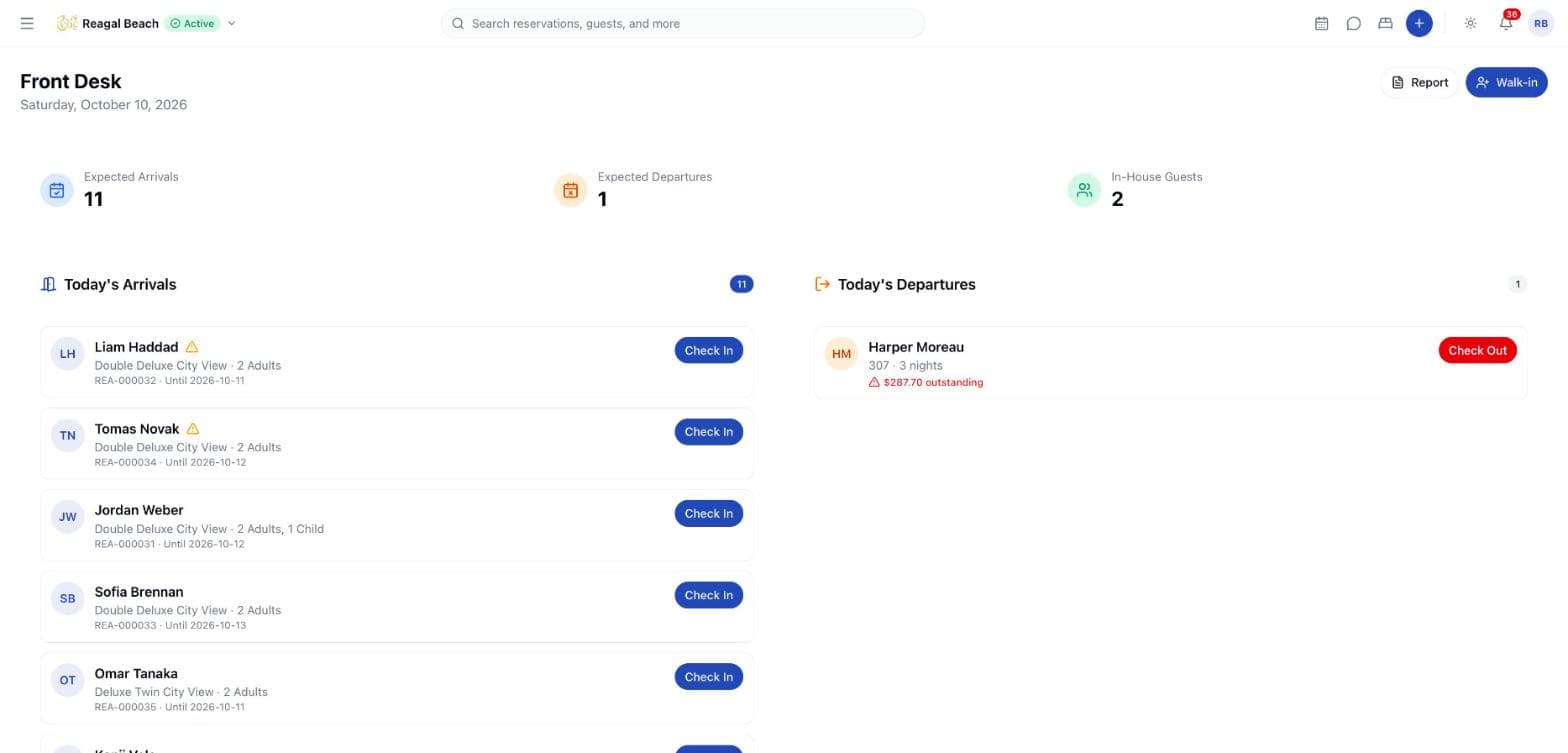
Arrivals & Departures (/front-desk) is the board the desk works a shift from. It opens on today's date, counts what is expected, and lists every arrival still to check in and every departure still to leave, each with the button that finishes it. Checking a guest in runs a three-step dialog — Booker, Guests, Review — that records the identity you checked, names everyone staying, confirms the room, and posts the early check-in fee if the guest is ahead of time.
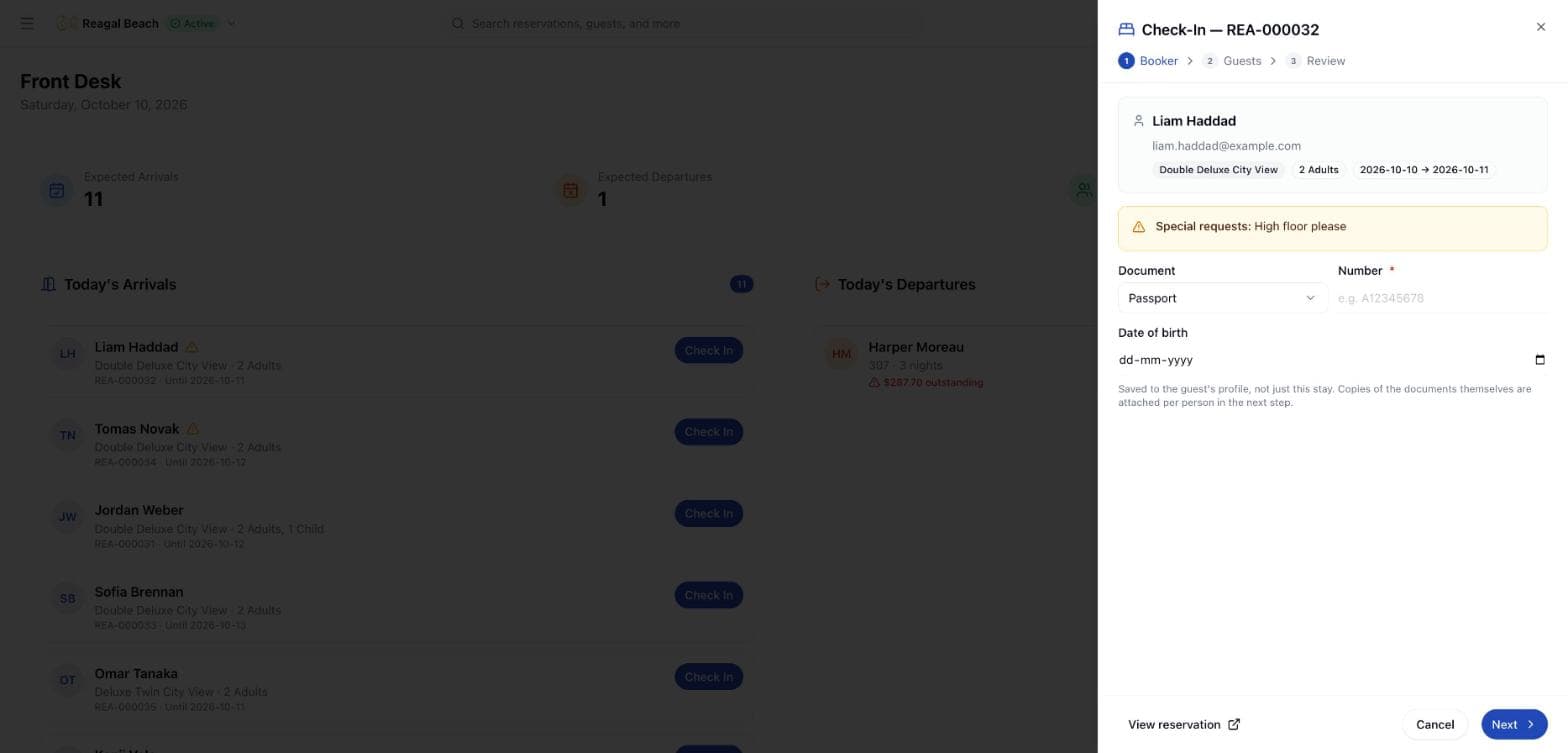
The same dialog is the only way in. Open a reservation from the Calendar, the Bookings list or search, choose Check In from its status chip, and you get the identical three steps — there is no one-click shortcut that skips the identity, the register and the signature.
Where it lives
Front Desk → Arrivals & Departures in the sidebar. The page header carries today's date, a Report button (see Front Desk Report) and a Walk-in button.
Three tiles sit above the lists: Expected Arrivals, Expected Departures and In-House Guests. The first two count the rows below them; In-House Guests counts every reservation currently In-House, whatever its dates.
Both lists are work queues
Today's Arrivals holds only Confirmed stays arriving today; Today's Departures only In-House stays leaving today. Finish one and its row disappears, so what is left on screen is exactly the work still to do. A booking that was cancelled, no-showed or already processed is not work — to see what became of a day, use the Front Desk Report. Reading the board needs the Reports: read permission, which the Front Desk role has.
Both lists are computed on the property's clock, so "today" flips at the property's midnight and not at yours. No arrivals today and No departures today are the empty states.
Reading an arrival row
| Part | What it shows |
|---|---|
| Initials and name | The booker on the reservation |
| ⚠ beside the name | The booking carries special requests — they are spelled out on step 1 |
| Second line | Room type, then N Adults and N Children where there are any |
| Third line | The booking reference, then Until the departure date |
| Check In | Opens the three-step dialog |
Check a guest in
Open Check In
Click Check In on the arrival's row, or open the reservation and choose Check In from its status chip. The panel is titled Check-In — <reference> and shows the three steps across the top.
Step 1 — Booker
The booker's name, email, phone, room type, occupancy and dates are shown for confirmation, with any Special requests called out in amber. Under them, record what the guest handed over: Document (Passport, National ID, Driving licence or Other), Number — the only required field on this step — and Date of birth.
These go onto the guest's profile, not just this stay, so a returning guest arrives with them already filled in. Next refuses to move on without a number: Enter the guest's ID or passport number.
Step 2 — Guests
The occupant register: everyone staying, not just whoever booked. The panel reads N of M named and lists a card per person with Given name, Family name, Nationality, Date of birth and a Holds a resident permit switch. Add guest adds a row, up to the occupancy the booking was made for; past that the note reads This booking is for N guests. Change the occupancy on the reservation to name more.
Save guests writes the list. Saving re-prices the stay — tax exemptions for nationals, resident-permit holders and children under two are judged from this list — and any change reaches the folio as an adjustment rather than rewriting what was charged, which is why it is its own action rather than saving as you type. Rows the channel supplied are marked From channel; an exempt person gets a green badge naming the reason.
Once a person is saved, their card gains an ID copy block: pick the document type, Attach a photo or scan, and it is held against that person. A row that has not been saved yet says Save the guests to attach a passport or ID copy for this person.
Step 3 — Review
One row per room on the booking, each showing the room type, the occupancy, the names you just saved and the room number in bold, with a Change button (Assign when there is no room yet). Under them: the stay summary, who signs the register, and the early check-in fee.
Check in
Check in sends it. The guest's document goes onto their profile first and on its own, so a refusal further down does not cost you the typing. A <Guest name> checked in toast confirms it, the row leaves the board, and the reservation turns green and reads In-House.
The room is already theirs
Rooms are assigned when the booking is created, not at check-in. A reservation taken in the PMS is given a physical room per room it holds and is refused outright if none can be found, so by the time the guest reaches the desk the room is theirs and step 3 only confirms it. Only a channel import can arrive without one.
Step 3 warns when something is missing:
| Warning | Meaning |
|---|---|
| No room is assigned to this booking — it came from a channel that could not be placed automatically. Assign one before handing over a key. | A single-room booking with no room |
| Not every room of this booking has been assigned. Assign each one before handing over keys. | A multi-room booking with a gap |
Only N of M guests are named. Taxes are charged in full for anyone still unnamed. | The register from step 2 is short of the booked occupancy |
None of them blocks the check-in — they are there so you do not hand over a key to a room nobody holds.
Change (or Assign) opens the Change room dialog: pick the Room type, then a room from the list. Rooms that cannot take a guest are greyed out and labelled Dirty or Out of order, the current one is marked Current, and a booking holding several rooms first asks Which room — each is assigned separately. Changing to a different room type also asks for a Rate plan and re-prices the stay. The same dialog is what the Calendar's drag-and-drop uses, and the server applies the same checks either way; see Modifying Reservations.
Housekeeping condition is judged at the moment of the move
A room that is Dirty or awaiting inspection is refused for a guest who is moving in now — Room is dirty and must be cleaned before an in-house guest can be moved into it — but it is a perfectly good room for a stay that starts next week, so a future booking may hold it. Check the Calendar's room badges on the morning of arrival, not only at booking time.
The stay summary and the register
Below the rooms, a summary block repeats what is about to be committed: Guest, Document (the type and number from step 1), Room type, Rate plan, Check-in and Check-out.
Register signed by is prefilled with the booker's name — whoever is standing at the desk, unless you say otherwise. Its note reads Recorded against the stay with the time of check-in. Clear it if nobody signed. Leave it as it is for the usual case; clear it when no card was signed, and nothing is recorded.
What check-in records
| Thing | Before | After |
|---|---|---|
| Reservation status | Confirmed | In-House (green) |
| Arrival stamp | — | checked in at the moment you confirmed, against the user who did it |
| Register | — | The signed name and the time it was signed, when a name was given |
| Every assigned room's occupancy | Vacant | Occupied — the Dashboard's occupancy and the Rooms list follow immediately |
| Room housekeeping condition | unchanged | unchanged — condition moves at check-out, or when housekeeping changes it |
| Folio | OPEN, with the stay's charges and taxes | Plus an Early check-in fee line, unless the guest was on time or you waived it |
| Guest profile | whatever was on file | The document type, number and date of birth from step 1 |
| Editing | Edit reservation available | Disabled — Checked-in reservations can't be edited here. |
| Room moves | any assignable room, any type | Room may change within the same type; the room cannot be unassigned |
| Notifications | — | A Guest checked in item in the live feed and the navbar bell |
The fee, the status flip and the room occupancy flip all commit together: a fee can never be posted for a check-in that did not happen, and a room cannot read vacant while the guest is in it.
Checking in a reservation that is already In-House is harmless — the server returns it unchanged, logs nothing and sends no notification.
Early check-in fee
An arrival ahead of the property's check-in time earns the property's early check-in fee, posted to the folio as part of the check-in.
Step 3 tells you what is coming before you confirm, in the line under the Waive early check-in fee switch:
- On time — within the check-in time 14:00 (+30 min grace). No fee.
- Early by 2 h 15 min — posts 25.00 USD (before 12:00).
- Early by 1 h — no early check-in fee is configured for this property, so nothing will post. Set one under Settings → Property → Stay Rules.
- Early by 3 h — the fee is already on the folio.
What the guest is charged comes from the property's Stay Rules: a ladder of brackets, each a flat amount or a percentage of the night, matched against the property's clock — the earliest bracket whose time the arrival is still before wins. With no ladder set, the flat Early check-in charge from the property's general settings applies instead. A grace window lets a guest a few minutes early through for nothing.
The fee posts only when all of these hold: the arrival is outside the check-in time plus grace, the ladder or the flat charge produces an amount above zero, the reservation's folio is not CLOSED, and no early check-in fee has been posted on that folio before. The folio line reads Early check-in fee (before HH:mm).
Waive it
Turn on Waive early check-in fee and type a reason — the placeholder suggests room was ready and vacant. The dialog refuses an empty one (Give a reason for waiving the fee.) and so does the server (A reason is required to waive the early check-in fee). The waiver is written to the audit log with the amount forgone and the rule that earned it, because an unexplained fee nobody charged is exactly what an audit asks about later.
Waiving is a decision taken at check-in. Afterwards the line is a folio posting like any other: void it from the reservation's Folio tab, and note that the fee is assessed at most once per stay, so a void is final for that folio — see Charges and Postings.
Walk-ins
A guest at the desk with no booking is a reservation created for tonight and checked straight in. The Walk-in button on the board does both.
Press Walk-in
The creation sheet opens titled Walk-in, with the check-in date set to today and the check-out date to tomorrow. The tentative-hold option is not offered — the guest is already here. Everything else is the ordinary form: guest, room type, rate plan, occupancy, price. See Creating Reservations.
Let Innvera pick the room
A reservation created in the PMS is given a free, assignable room of the chosen type automatically. If none qualifies the booking is refused rather than created without one — free a room or pick another type.
Check in
The three-step Check-In dialog opens on the new reservation as soon as it is created. Work it exactly as any other arrival.
The booking is flagged as a walk-in, and shows as Walk-in in the Source column of the Front Desk Report.
Holds have to be confirmed first
A courtesy hold is a real booking — it takes the room and the inventory — but it is not confirmed, so it cannot be checked in and never appears on the arrivals board. Open it and the status chip reads On Hold with two choices: Confirm Booking, which makes it firm, and Release Hold. Confirm it and the arrival appears on the board as usual. Holds are made from the Calendar and documented in Statuses and Lifecycle.
When check-in is refused
The PMS disables the action with its own wording and the server repeats the check if the action is sent anyway.
| Message | Why | Fix |
|---|---|---|
| "Check-in opens on the arrival day (…)." | The reservation arrives later; the date is printed in the menu item itself. | Wait, or amend the check-in date. |
| "Arrival day (…) has passed — amend the dates before checking in." | Usually a stay nobody processed yesterday. | Edit the reservation's dates to today, then check in. The server's wording is amend the reservation dates before checking in. |
| "Only confirmed reservations can be checked in" | The booking is On Hold, Cancelled, No Show or already Checked Out. | Confirm a hold; nothing reopens the rest — create a new reservation. |
"This booking is for N guest(s); M were given." | Step 2 was given more people than the booking was made for. | Remove the extras, or change the occupancy on the reservation first. |
| "Reservation not found" | Deleted, or it belongs to a property you cannot access. | Re-open it from Bookings. |
Both date rules are judged on the property's timezone, so a manager reviewing from another country sees the same answer as the desk.
Common mistakes
- Skipping step 2 on a Maldives property. Green Tax exemptions are read off the occupant register. Anyone unnamed is taxed in full, and the fix after check-in is a folio adjustment rather than a correct bill.
- Attaching the ID copy before saving the names. Copies hang off a saved person. Press Save guests, then attach.
- Handing over a key on an unassigned channel booking. The warning on step 3 does not block the check-in. Use Assign.
- Expecting a waived fee back. The fee is assessed once per stay; waiving at check-in, or voiding the line afterwards, is final for that folio.
Related
Dashboard
The four today tiles, booking sources, occupancy, revenue, room availability and the live feed — what each shows and what clicking it does.
Departures and Check-out
The check-out dialog — the live folio balance, taking payment, the settlement gate and its override, late check-out fees, and what check-out locks.