

Dashboard
The four today tiles, booking sources, occupancy, revenue, room availability and the live feed — what each shows and what clicking it does.
The Dashboard is the first item under Front Desk and the page the PMS opens on. It answers the desk's morning questions in one screen: how many guests are arriving and leaving today, how many are in-house, how full the property is, which rooms are not ready, where bookings have been coming from, and what has just happened. Everything on it is computed on the property's timezone, so "today" flips at the property's midnight, not yours.
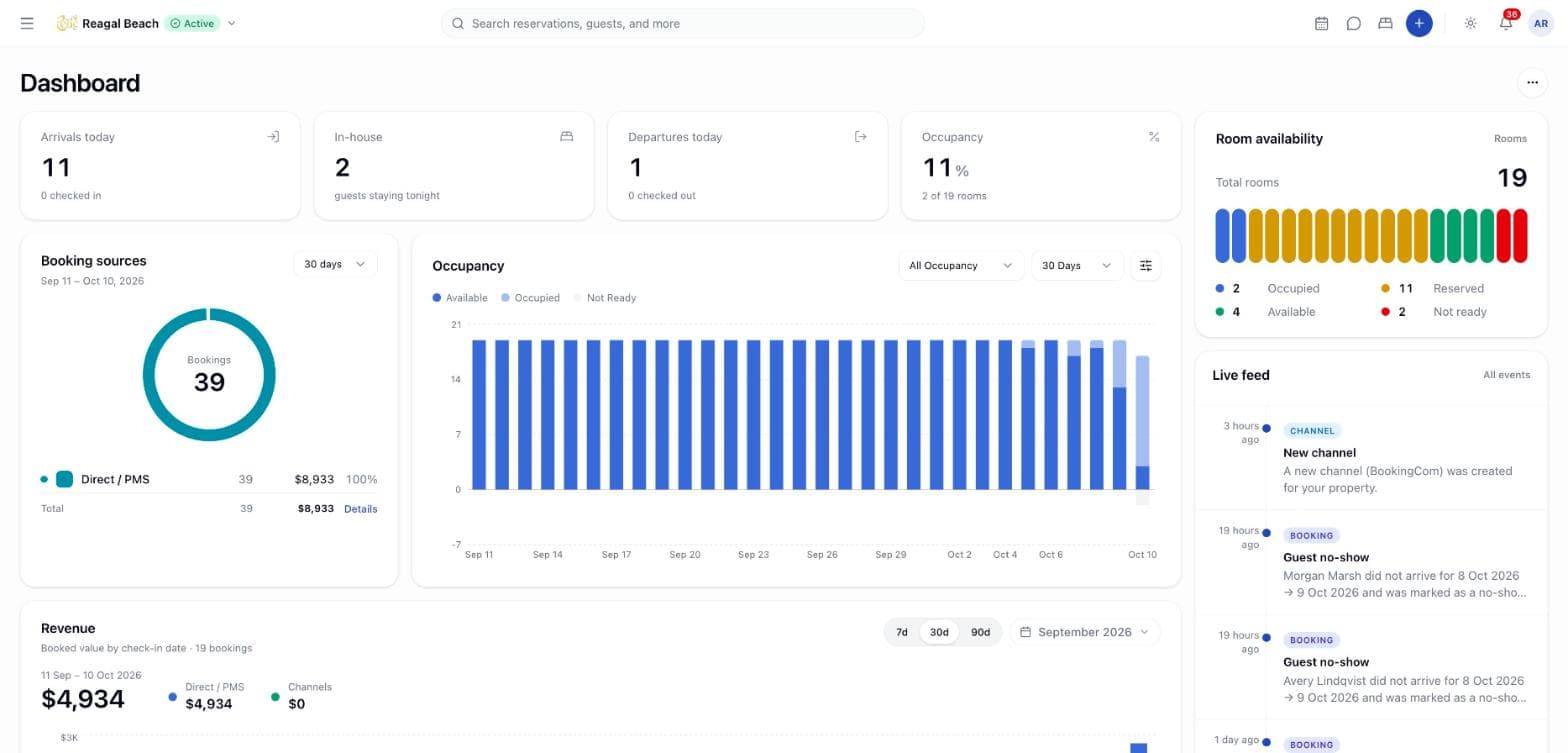
The page refreshes itself every minute and re-fetches when you return to the tab. The ⋯ button in the header offers Refresh data, Go to calendar and Manage rooms. If the report cannot be loaded, a red banner shows the server's message with a Retry button.
Today tiles
Four tiles across the top. Each is a link; hover shows an arrow.
| Tile | Number | Detail line | Click goes to |
|---|---|---|---|
| Arrivals today | Reservations whose check-in date is today and are still Confirmed or already In-House | N checked in — how many of them have already arrived | Arrivals & Departures (/front-desk) |
| In-house | Reservations currently In-House, regardless of dates | guests staying tonight | Bookings |
| Departures today | Reservations whose check-out date is today and are In-House or already Checked Out | N checked out — how many have already left | Bookings |
| Occupancy | Occupied rooms ÷ total rooms, as a percentage | N of M rooms, or No rooms configured | Rooms |
Occupancy here is the live room state (rooms whose occupancy status is Occupied), not sold nights, so it rises as you check guests in and falls as you check them out.
The Arrivals tile is where the shift starts
Arrivals today opens Arrivals & Departures, the board with Today's Arrivals and Today's Departures and the Check In / Check Out buttons that work them. The dashboard counts the day; the board is where you do something about it, and the front desk report is where you read it back afterwards.
Booking sources
A donut of where the reservations arriving in the selected window came from, with a legend listing each source's share, booking count and amount, and a Total row. Sources are Direct / PMS (staff-entered and booking-engine reservations together) and one entry per OTA (Booking.com, Airbnb, Expedia and so on, with logos). More than five sources fold into Other (N). Cancelled reservations are excluded.
The dropdown at the top right picks the window: 7 days, 30 days, 90 days or 365 days, always ending today. It is shared with the Occupancy chart. A window is counted by check-in date: a booking arriving next week is not in a 30-day window that ends today.
Occupancy
A bar per night for the same window, stacking Occupied (rooms sold that night, from every Confirmed, In-House or Checked Out stay touching it) and Available (the rest of your rooms). Today's bar also carries Not Ready — rooms that are Dirty, Clean (awaiting inspection) or out of order — drawn below the line, because that is a live housekeeping state and only exists for today. The series dropdown (All Occupancy or a single series) and the legend toggle make the chart easier to read on a small screen.
Past and future nights show sold versus unsold; only today shows not ready. A night can never exceed your total room count even if a data error double-books.
Revenue
The total booked amount for reservations checking in within the window, split into Direct / PMS and Channels, with a per-day line for each. Presets are 7d, 30d, 90d; the date picker beside them sets any custom range up to a year. Cancelled and no-show reservations are excluded, since nothing was delivered. Amounts are reservation totals in the property currency, not folio postings — for cash actually received, use Accounting.
Room availability
The right-hand column starts with Room availability: Total rooms and a pill bar splitting them into Occupied, Reserved, Available and Not ready, each with a count. Reserved means an arrival today that has not checked in yet. Available is what is left after occupied, reserved and not-ready rooms are removed. The Rooms link opens the Rooms screen; No rooms configured yet means the property has room types but no physical rooms.
Live feed
Below it, Live feed lists the latest 25 notifications for the property, newest first, each with a category chip — Booking, Channel, Housekeeping, Billing or Message — a title, the body, and a relative time. An unread item has a filled dot. Click one to mark it read and open the related screen (a reservation, a room, a thread). The same items are in the bell in the navbar. Nothing has happened yet is the empty state on a fresh property.
Tips
- Numbers look wrong at midnight? Check the property timezone under Settings → Property → General. Every "today" figure follows it.
- Occupancy tile and Occupancy chart disagree for today. The tile counts rooms physically occupied; the chart counts nights sold. A guest who booked for tonight but has not checked in is in the chart, not the tile.
- Revenue is not cash. It is the booked value of stays starting in the window. Deposits, refunds and unpaid balances live on the folio.
- Want a different window for Booking sources than for Revenue? They are independent; only Booking sources and Occupancy share a selector.
- Need the names behind a number? The tiles count; they do not list. Click through to the board for today, or run the front desk report for any range up to a quarter.
Related
Overview
The screens a front desk agent uses all day — dashboard, the arrivals and departures board, the calendar, bookings, availability and guest profiles.
Arrivals and Check-in
The arrivals board and the three-step Check-in dialog — identity, the guest register, room confirmation, early check-in fees and walk-ins.