

Property Settings
The property profile — name, timezone, currency, times, booking numbers, address and contacts — plus the Stay Rules fee ladders and the OTA policy record.
Open Settings in the sidebar; it lands on Property Settings. The title carries the property's status badge — Pending verification, Active or Suspended — and five pill tabs split the form: General, Address, Contact Information, Stay Rules and OTA Policy. Each tab saves independently with its own button, so you can change the check-out time without touching the address.
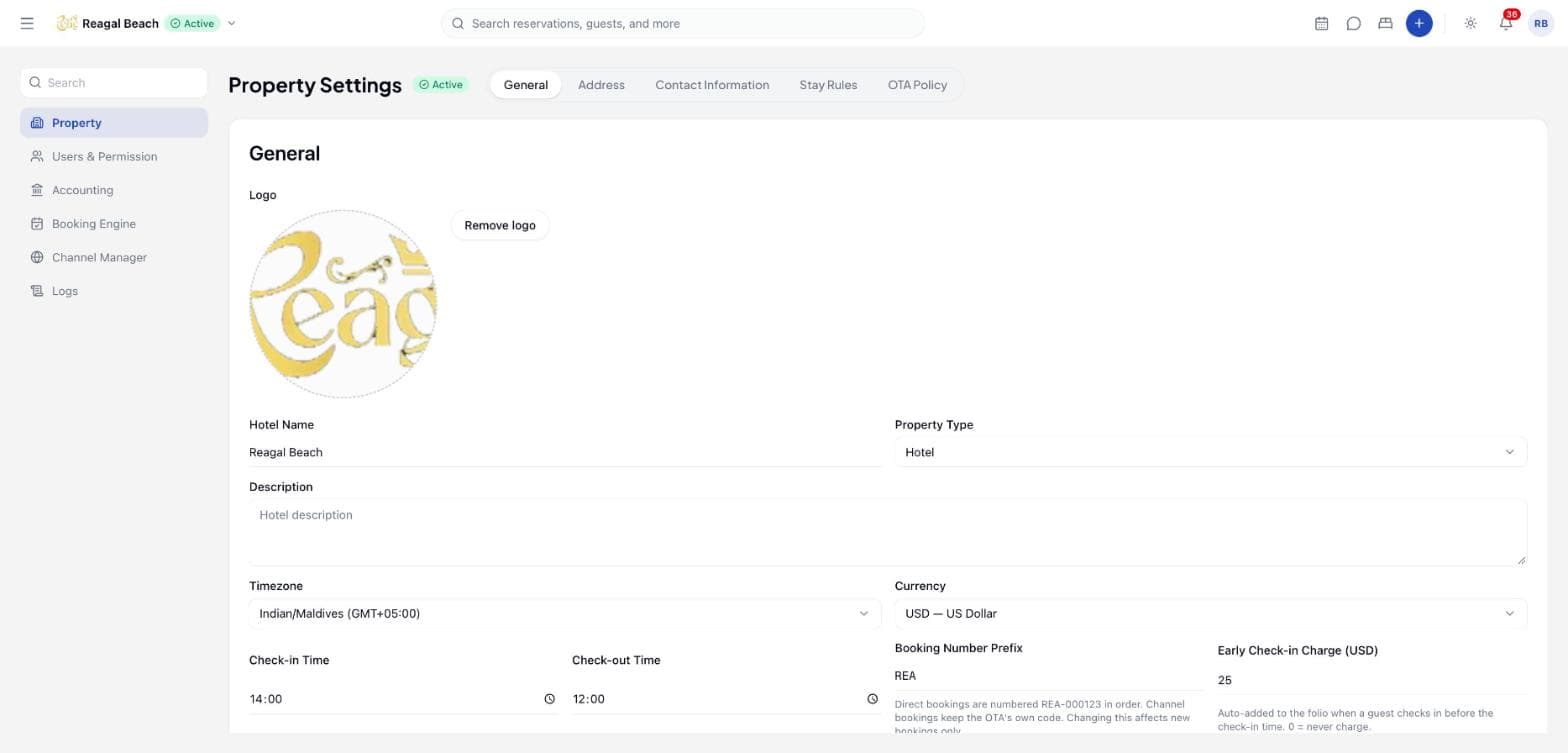
These values reach far beyond this page. The currency is the currency of every folio, rate and stock price; the timezone decides when "today" rolls over for housekeeping, the no-show sweep and the daily close; the check-in and check-out times are the zero points the early and late fee ladders measure from. The first three tabs need the hotel: write permission; Stay Rules and OTA Policy need hotel_content: write.
General
| Field | Notes |
|---|---|
| Logo | Drop or pick an image (JPEG, PNG or WebP). Uploads immediately — Logo updated. Remove logo asks for confirmation. The logo shows beside the property name in the top bar. |
| Hotel Name | 2–120 characters |
| Property Type | Hotel, Apart Hotel, Apartment, Boat, Camping, Capsule Hotel, Chalet, Country House, Farm Stay, Guest House, Holiday Home, Holiday Park, Homestay, Hostel, Inn, Lodge, Motel, Resort, Riad, Ryokan, Tent, Villa |
| Description | Free text |
| Timezone | Picked from the live list of IANA timezones |
| Currency | Picked from the live list of ISO currencies |
| Check-in Time / Check-out Time | HH:mm |
| Booking Number Prefix | 2–5 letters or digits, upper-cased as you save. See below. |
| Early Check-in Charge / Late Check-out Charge | Amount in the property currency. Auto-added to the folio when a guest checks in before the check-in time (or out after the check-out time). 0 = never charge. This is the bottom rung of the ladder on the Stay Rules tab. |
| Star Rating | 1 Star to 5 Stars |
Click Save General; the toast reads Property updated.
Booking Number Prefix
Every reservation your staff or your booking engine creates is numbered from a single counter, written as the prefix, a hyphen and a six-digit sequence: SUN-000123. Group bookings share the same counter and insert a G: SUN-G-000012, so no two pieces of business ever carry the same number.
The field accepts 2 to 5 letters or digits and nothing else (2 to 5 letters or digits); "sun" and "SUN" are the same choice, because it is upper-cased on the way in. The hint under the field spells out the consequence: Direct bookings are numbered SUN-000123 in order. Channel bookings keep the OTA's own code. Changing this affects new bookings only.
Changing the prefix does not renumber history
Existing reservations keep the number they were given — a number that has been quoted to a guest, printed on an invoice and sent to an accountant cannot change. Only bookings created after the save use the new prefix, so a property that switches prefix mid-year will have two shapes of number in its ledger. Pick one at setup and leave it alone.
A property that never opens this field gets a prefix derived from its name (the first three letters, so "Sun Siyam Iru Fushi" becomes SUN).
Currency and timezone are foundational
Rates, folios, stock prices and reports are all expressed in the property currency, and there is no conversion at the property level. Set currency and timezone correctly before you load rates or take bookings, and treat later changes as a decision for the accountant.
Address
Address Line 1 (required), Address Line 2, City (required), Region / State, Country (required) and Postal Code. Save with Save Address.
The address here is a plain form. The map picker used during registration is not part of this page; the coordinates chosen at registration stay as they were.
Contact Information
A list of up to ten contacts. Each row has a type (EMAIL, PHONE or WEBSITE), a value with a matching placeholder (email@example.com, +1 555 000 0000, https://example.com) and a Primary checkbox. Add Contact appends a row, the bin icon removes one, and Save Contacts writes the whole list.
Stay Rules
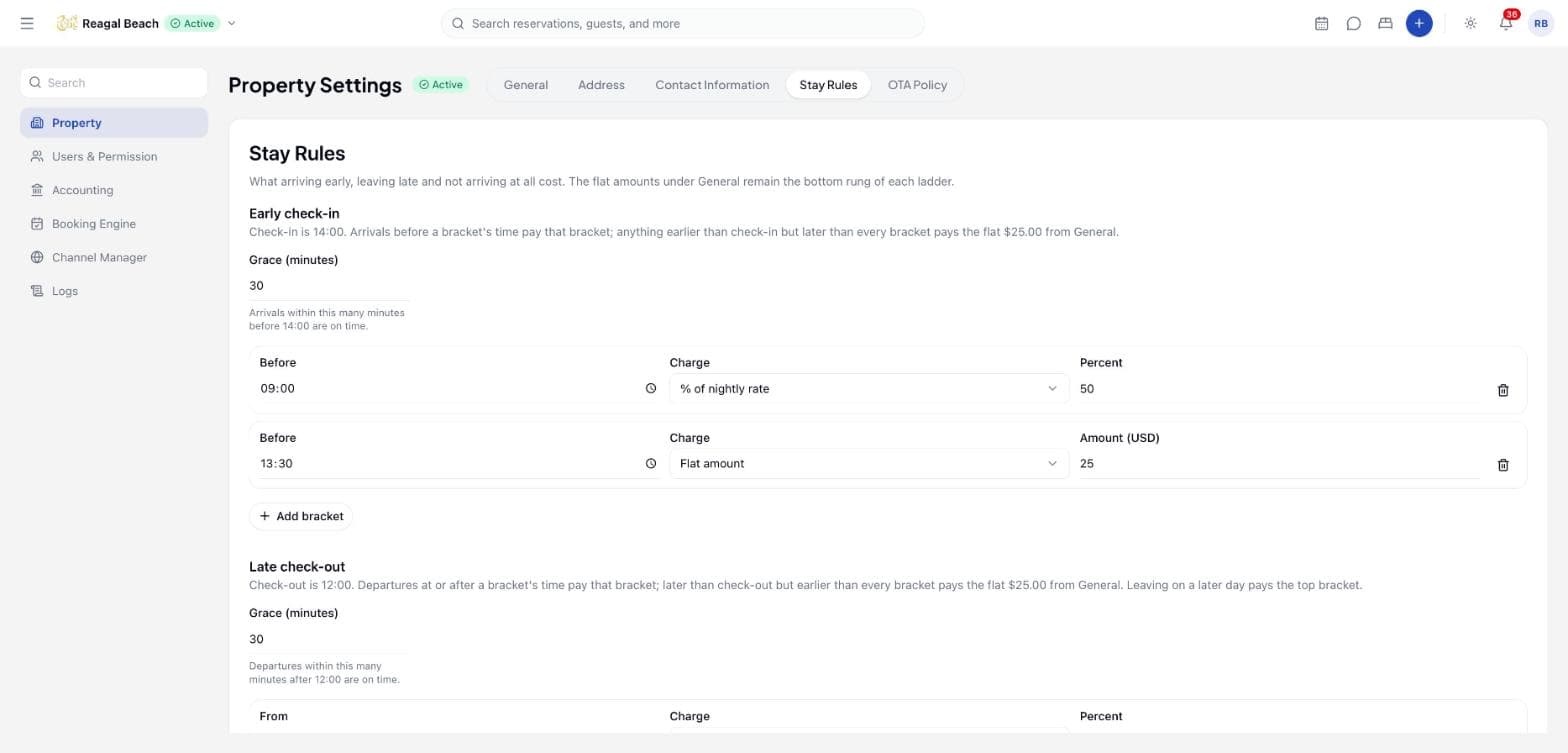
The Stay Rules tab is the money at the edges of a stay: What arriving early, leaving late and not arriving at all cost. The flat amounts under General remain the bottom rung of each ladder.
It holds three things — an Early check-in ladder, a Late check-out ladder and the No-show settings — and the whole document saves as one piece with Save stay rules. Reset throws your edits away and returns to what is stored. Until the property has saved once, a line reads Not saved yet — these are the defaults every property starts with.
Why it saves whole
A ladder with a rung missing is a different rule, not a partial save. The tab edits one draft of the entire policy and sends it in one go, so the brackets, the grace windows and the no-show settings can never be half-applied.
How a fee ladder works
Each ladder has the same two parts.
Grace (minutes) — 0 to 720. For early check-in, Arrivals within this many minutes before 14:00 are on time; for late check-out, Departures within this many minutes after 12:00 are on time. Inside the grace window nothing is charged at all, whatever the brackets say. Both default to 0.
Brackets — up to twelve rungs, each with a time, a Charge basis and a value:
| Column | Early check-in | Late check-out |
|---|---|---|
| Time | Before — arrivals strictly earlier than this time fall in the bracket | From — departures at or after this time fall in the bracket |
| Charge | % of nightly rate or Flat amount | the same two |
| Value | Percent, or Amount in the property currency | the same |
Early brackets are kept earliest-first and the first one the arrival falls inside wins — so a guest arriving at 07:30 against rungs at 09:00 and 12:00 pays the 09:00 rung. Late brackets are kept latest-first and the first one the clock has passed wins — a guest leaving at 19:00 against rungs at 18:00 and 15:00 pays the 18:00 rung. Add a rung with Add bracket, remove one with the bin icon (Remove bracket); the list re-sorts itself each time, so you can enter rungs in any order.
When a bracket is a percentage, it is a percentage of the stay's average night — the reservation total divided by its nights, tax included — not of a rate-card figure. A 50% early rung on a three-night stay totalling 1,800.00 charges 300.00.
The bottom rung is the flat amount on the General tab. If a guest is outside the grace window but no bracket claims the time, the Early Check-in Charge or Late Check-out Charge applies instead. Set that to 0 and such an arrival is free. With no brackets at all the ladder is just that one flat figure, which is what the empty state says: No brackets — the flat amount from General applies to any early check-in.
A guest who stays past their departure date pays the top bracket — the latest rung there is — whatever the hour, because they have overstayed a day rather than a morning. With no brackets they pay the flat late figure.
Set the grace window
Decide how much slack the desk gives. Fifteen or thirty minutes is common; 0 means the fee starts the minute the clock does.
Add the rungs, cheapest first
Think in terms of what the room costs you. A late check-out at 15:00 might be 50% of a night; at 18:00, 100%, because the room cannot be re-sold that day.
Leave the flat amount on General as the floor
That is what an arrival at 13:30, or a departure at 12:45, will pay when no rung reaches them.
Save
Click Save stay rules. Every bracket needs a valid time, or the save is refused with Every early check-in bracket needs a time (HH:mm). / Every late check-out bracket needs a time (HH:mm).
The fee is worked out when the guest is actually checked in or out, and the check-in and check-out dialogs show it before you commit. It posts to the folio as a single line naming the rung that earned it — Early check-in fee (before 09:00), Late check-out fee (after 18:00), Late check-out fee (past departure date) — and it is assessed at most once per stay, so voiding the line does not invite a second one. A fee can be waived at check-in with Waive early check-in fee and a reason. See Arrivals and check-in and Departures and check-out.
No-show
A confirmed guest who never checked in.
Fee chooses what the no-show costs:
| Option | What it charges |
|---|---|
| Default cancellation tier | Whatever the default tier on the Cancellation policy charges. The tier set on Policies decides, and a no-show is always inside its window. This is the default. |
| No fee | The stay is reversed and nothing is charged. |
| First night | One night's share of the stay price, tax included. |
| Percent of stay | A share of the whole stay price. Enter the share in Percent of stay (0–100). |
| Flat amount | A fixed amount in the property currency. Enter it in Amount. |
Whatever the basis, the fee is capped at the stay it replaces: a 150% rule charges the stay, not more.
Mark no-shows automatically is the switch that does it without anyone at the desk: Every confirmed arrival still not checked in is marked as a no-show the morning after, at the time below (property clock). Inventory is released and the fee above is posted. Switch it on and an At time appears — 06:00 unless you change it, and it must be a valid HH:mm (The auto-mark time must be HH:mm.).
The sweep only ever touches a stay whose arrival day is already behind the property's date, so a guest arriving at 23:50 is late, not absent. It looks back one week and no further, which keeps switching the feature on from marking a month of history overnight. Each booking is marked through the same path the desk uses, so it cannot be marked twice.
Report no-shows to the channel decides whether the OTA is told: Tells the OTA the guest never came, so its own no-show rules apply and the booking is not paid out as a stay. Channels not ticked are marked here only. There is one switch, Booking.com — the only channel the channel manager can carry a no-show report for. Every other OTA's no-shows are recorded in Innvera and must be reported in that OTA's own extranet. Booking.com is on by default.
Holds use a fixed 24 hours
A tentative booking put On Hold expires 24 hours after it is created unless the person creating it sets an expiry on the booking itself. There is no default-hold control on this tab; 24 hours is the property default. See Statuses and lifecycle.
OTA Policy
This tab holds the property policies Channex passes on to connected channels; the values mirror Channex's hotel policy record exactly and the save button is Save Channex Policy.
| Field | Options |
|---|---|
| Max Guests | 1 or more |
| Adults Only | switch |
| Internet Access | None, Wi-Fi, Wired |
| Internet Coverage | Entire Property, Public Areas, All Rooms, Some Rooms, Business Centre |
| Internet Cost (leave blank if free) | amount |
| Parking | On Site, Nearby, None |
| Parking Reservation | Not Available, Not Needed, Needed |
| Private Parking | switch |
| Pets Policy | Allowed, Not Allowed, By Arrangement, Assistive Animals Only |
| Pet Fee (non-refundable) / Pet Deposit (refundable) | amounts |
| Smoking Policy | No Smoking, Permitted Areas Only, Allowed |
The toast reads Channex policy updated. See Channel Manager for how and when policies are pushed.
Identity documents
A property cannot go live until its owner's identity has been verified by an Innvera platform admin. The Identity Documents page at /settings/documents (also the Documents card on your Profile) is where that evidence is uploaded. It is not in the settings rail; open it by URL or from the Profile.
Choose the document type
Passport, National ID, Driver's License, Business License or Other.
Upload the file
JPEG, PNG, WebP or PDF, up to 10 MB. Click Upload Document.
Wait for review
The Your Documents table shows each file with its Type, File link, Status (Pending, Verified or Rejected) and upload date. A rejected document shows the reviewer's reason under the file name; upload a replacement. A verified document cannot be deleted; pending and rejected ones can, after a Delete this document? confirmation.
The property is activated
When a platform admin verifies a document and activates the property, the status badge on this page changes from Pending verification to Active and the property becomes visible to guests. See Multi-property & Platform Admin.
Terms, policies and guest-facing documents
The Documents page holds owner identity documents only. Cancellation tiers and house rules live on the Policies page; guest-facing terms for the booking engine are configured under Booking Engine.
Common mistakes
- Saving one tab and expecting the others to save too. Each tab has its own button: Save General, Save Address, Save Contacts, Save stay rules, Save Channex Policy.
- Building a ladder and leaving the flat charge at an old figure. The flat Early Check-in Charge and Late Check-out Charge are still live — they are what a guest pays when no rung reaches them.
- Expecting a percentage rung to follow the rate card. It follows the stay's average night, tax included, which is the reservation total divided by its nights. A discounted stay produces a smaller fee.
- Ticking Booking.com and assuming every OTA is told. It is the only channel the channel manager can report a no-show to; the rest need the extranet.
- Turning on auto-marking without agreeing the time. It runs on the property clock, and once a stay is marked the inventory is released and the fee is posted. Pick a time after the night audit, not before it.
Related
- Roles and Permissions — who can edit the property and who can edit Stay Rules
- Policies — the cancellation tiers the no-show basis can borrow
- Cancellations and no-shows — what marking a no-show does to the folio
- Channel Manager — where the OTA policy ends up
Overview
The Settings hub for a property — profile, stay rules, staff and roles, accounting, integrations and logs — plus notifications and the platform admin area.
Users & Permissions
Invite staff by email, give them roles, build custom roles from the permission matrix, and remove access when someone leaves.