

Users & Permissions
Invite staff by email, give them roles, build custom roles from the permission matrix, and remove access when someone leaves.
Settings → Users & Permission is where the owner decides who works at the property and what each person can open. The header reads Manage roles, permissions and who can do what in this hotel, and two pill tabs divide it: Users — the roster, invitations and role assignments — and Roles — the roles themselves and their permission matrix.
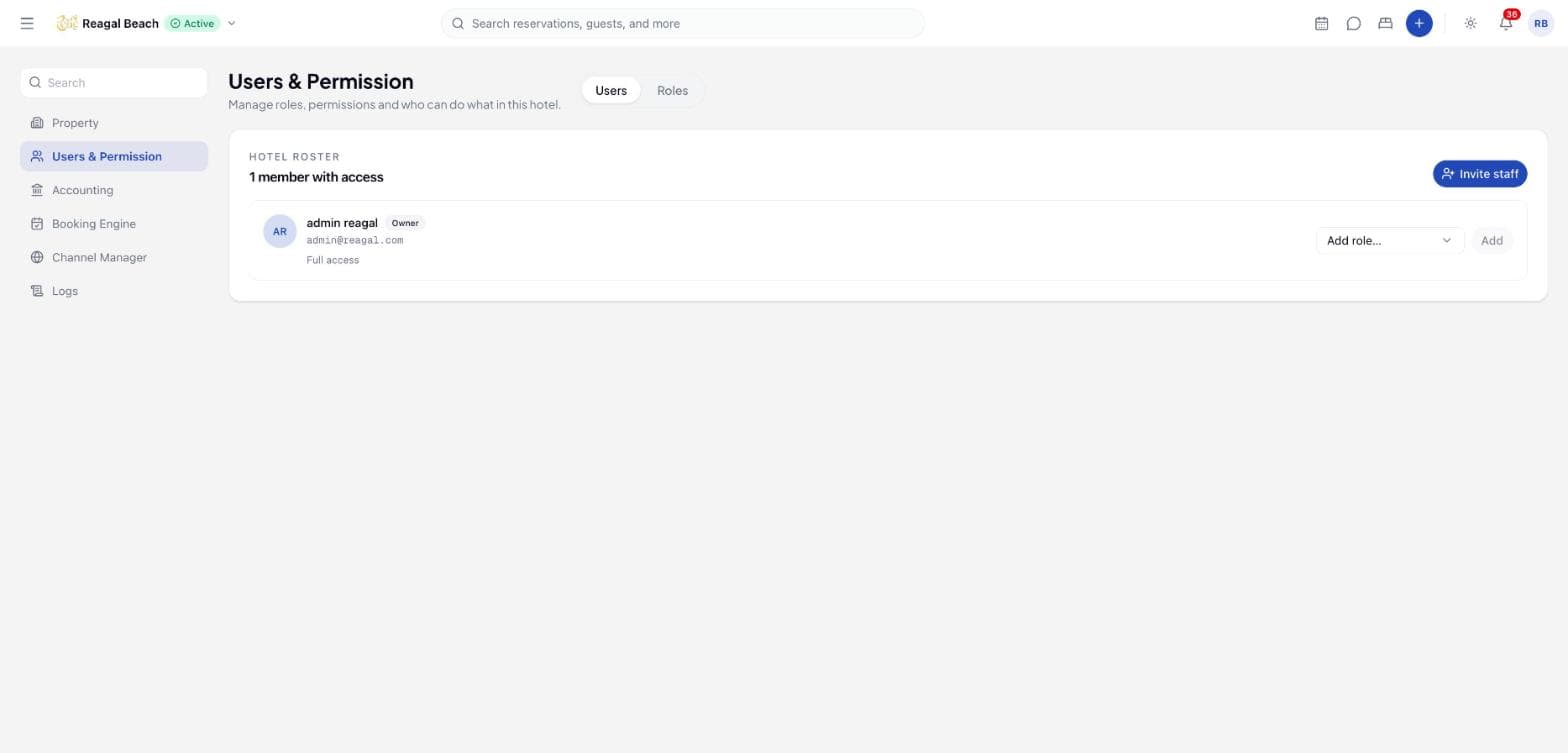
Innvera's access model is simple. Every protected area of the app is a resource (Reservation, Folio, Housekeeping, Accounting, Stores…) with a short list of actions (read, write, cancel, close…). A role is a set of ticks in that grid. A staff member holds one or more roles and can do anything any of their roles allow. The owner — the person who registered the property — bypasses the grid entirely and is the only one who can open this page; everyone else sees Access Control is owner-only.
Key terms
Owner — the account that created the property. Full access, shown with an Owner badge and Full access on the roster. Cannot be removed here.
System role — one of seven read-only templates seeded by Innvera and shared by every property. Marked with a System badge. Clone one to customise it.
Custom role — a role you created or cloned. Editable and deletable; belongs to this property only.
Read-implied — every resource's read action is switched on automatically, and locked, as soon as any other action on that resource is ticked. You cannot grant cancel reservations without read reservations.
System roles
| Role | Description | Highlights |
|---|---|---|
| Administrator | Full access to every resource. Mirrors the hotel owner; assign to trusted staff. | Everything |
| Front Desk | Day-to-day reservations, guests, folio posting and messaging. | Reservation read/write/cancel, Guest read/write, Folio read/post, Messaging read/write, Reports, Accounting read + cashier |
| Attendant | Works on housekeeping tasks assigned to this user. | Housekeeping read/read_assigned/work, Lost & Found read/write, read-only Rooms, Reservations, Stores, Maintenance |
| Supervisor | Oversees the housekeeping team, assigns tasks and verifies completed work. | Housekeeping read/assign/work/verify/configure/read_team, Lost & Found read/write, read-only Rooms, Reservations, Stores, Maintenance |
| Storekeeper | Manages physical stock: items, receipts, stock counts and adjustments. | All Stores actions, Housekeeping read/read_team, read-only Rooms |
| Accountant | Accounting, folio and tax management with reporting. | Folio read/post/void, Tax read/write, Reports, read-only Reservations, every Accounting action except cashier |
| Read-only | Read access to every resource; no mutations. | read everywhere, plus Housekeeping read_team |
The split between Attendant and Supervisor is the one that matters day to day: a person who can work housekeeping but not assign it gets the short attendant sidebar — My tasks, Maintenance, Stores — while a supervisor gets the full one. See Navigating the PMS.
Invite a staff member
Open the invitation
On the Users tab click Invite staff. The dialog explains: They'll get an email with a link to join this hotel. You choose what they can open.
Enter who
First name, Last name and Work email are all required.
Choose a role
Pick exactly one role from the list under Access pass; system roles carry a System badge and each shows its description. If no roles exist yet the list says Create a role on the Roles tab before inviting staff. You can add more roles to the person after they join.
Send it
Click Send invite. The toast reads Invitation sent to <email>, the person appears on the roster at once with the chosen role, and an email titled You're invited to join <property> on INNVERA goes out with an acceptance link.
The invitee activates their account
The link opens Set your password — You've been invited to join Innvera. Choose a password… — with live requirements: at least 8 characters, one uppercase letter, one number, one symbol. Clicking Activate account signs them in and opens the Calendar. The link is valid for 7 days; if it has expired or was already used the page shows This invite link isn't valid and you send a new invitation.
If the email already belongs to a member of this property the server refuses with User is already a member of this hotel. An existing Innvera user who is not yet a member of this property is added straight away with the role you chose.
Change someone's roles
On the roster each member shows their roles as badges. Use the Add role… dropdown and Add to grant another role (Role assigned), or the × on a badge to take one away after the Remove this role? confirmation, which warns that the person will lose the permissions granted by that role.
Remove a member
Click the bin icon on a member's row (not shown for the owner) and confirm Remove this member? — they will lose all roles and access to this hotel. They can be invited again later. The toast reads Member removed. This revokes access to this property only; the person's Innvera account, and any other properties they belong to, are untouched.
Deactivating and resetting
There is no separate deactivate switch: removing a member is how you suspend access, and re-inviting restores it. Password resets are self-service — the person uses Forgot password on the sign-in page and receives a Reset your INNVERA password email; an owner cannot reset a password on someone's behalf.
Create or customise a role
Start from a template or from scratch
On the Roles tab, either select one of the seven system roles and click Clone to customize (Cloned to "Front Desk (copy)"), or type a name in New role name and press the + button (Role "…" created). The new role is selected and editable.
Tick the permissions
The grid shows one row per resource and one checkbox per action. Ticking any action on a row locks its read box on. System roles show the grid greyed out with the note System roles are read-only templates. Clone this role to create an editable copy for your hotel.
Save
Save changes becomes active once the grid differs from what is stored. The toast reads Permissions saved for "…". Anyone holding the role gets the new permissions on their next request.
To remove a custom role click Delete and confirm Delete this role?; staff assigned to it lose the permissions it granted. System roles cannot be deleted.
Permission matrix
| Resource | Actions |
|---|---|
| Reservation | read, write, cancel, delete |
| Folio | read, post, void |
| Guest | read, write, delete |
| Room | read, write |
| Room Type | read, write, delete |
| Rate Plan | read, write, delete |
| Inventory | read, write |
| Tax | read, write, delete |
| Meal Plan | read, write, delete |
| Housekeeping | read, assign, work, verify, configure, read_assigned, read_team |
| Stores | read, receive, count, manage |
| Maintenance | read, write, assign, close, approve |
| LostAndFound | read, write, release, dispose |
| Hotel | read, write |
| Hotel Content | read, write |
| Channex | read, manage |
| Booking Engine | read, write |
| Messaging | read, write |
| Reports | read |
| Accounting | read, close, invoice, cashier, configure, export, refund |
| User | read, write, delete |
Access control itself is not a resource: only the owner manages roles and members, whatever roles they hold.
Common mistakes
- Inviting before creating roles. The dialog needs at least one role; the seven system roles are always available, so this only bites if they were never seeded.
- Giving a room attendant the Supervisor role. Supervisor grants
assign, which turns the full sidebar back on. Attendant is the role for someone who only cleans rooms. - Editing a system role. It is read-only by design. Clone it first.
- Expecting an invite to block the roster until accepted. The member appears immediately with their role; acceptance only sets their password.
- Granting
writewithout noticingreadlocks on. That is intended — every action implies read.
Related
- Administration — the settings hub
- Maintenance & Stores — what the
storesandmaintenanceactions unlock - Activity Logs — Member Invited, Role Assigned and Permission Changed entries
- Multi-property & Platform Admin — membership across several properties
Property Settings
The property profile — name, timezone, currency, times, booking numbers, address and contacts — plus the Stay Rules fee ladders and the OTA policy record.
Notifications
The in-app notification drawer and everything that can appear in it, who each alert reaches, how to turn on push for a device, and the emails Innvera sends.