

Connecting a Channel
Add an OTA connection with the Innvera form or the embedded Channex panel, complete Booking.com's extranet steps, then activate, test, pause or remove it.
A channel connection links one OTA account to your property. Booking.com, Agoda and Trip.com connect through an Innvera form where you type the OTA's property ID and map rooms yourself. Every other channel (Airbnb, Expedia, Hotels.com, TripAdvisor) connects through a Channex panel embedded in the PMS, where you sign in to the OTA and map rooms inside Channex.
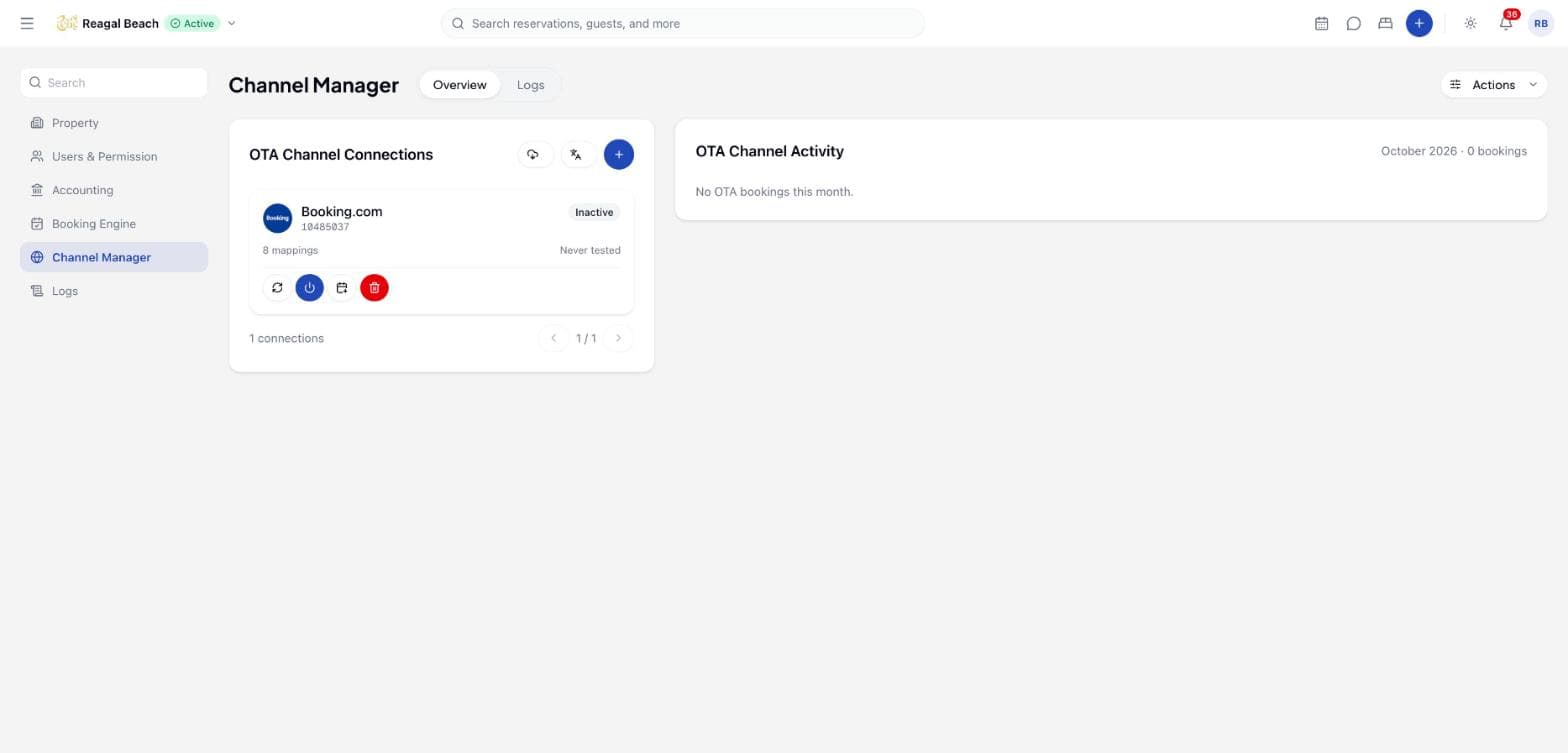
Both flows end with a card on Settings → Channel Manager → Overview under OTA Channel Connections. A new connection is always created Inactive; nothing is pushed to the OTA until you activate it.
Prerequisite
The property must already be synced to Channex (see Setup). Both flows stop with has not been synced to Channex yet otherwise.
Booking.com, Agoda and Trip.com (form flow)
Before you connect Booking.com
Booking.com must authorise Channex as your connectivity provider before mappings can be fetched or activated. The form shows these steps in a Before you connect callout:
- In the Booking.com extranet, open Account → Connectivity Provider, search for Channex (the full word) and accept the XML agreement.
- Copy the property ID shown at the top of the extranet next to the property name.
- You can map rooms while Channex is still accepting the request, but only activate once it has been accepted.
Choose the channel
On the OTA Channel Connections card, click the round + button and pick Booking.com, Agoda or Trip.com. The sheet Add Channel Connection - Step 1 of 2 opens with the channel preselected.
Enter the OTA Hotel ID
Type the OTA's property ID into OTA Hotel ID (for Booking.com, the extranet property ID such as 6519420).
For Booking.com only, the optional Advanced booking modifications switches decide which OTA-side changes create a modification on the reservation: VCC changes, Payout amount, Payout method, VCC balance and VCC fees payout. Leave them off unless you need them — some, like VCC balance, create frequent modifications when currencies differ.
Fetch Room & Rate Options
Click Fetch Room & Rate Options. Innvera asks Channex for the room types and rate plans that exist on the OTA for that property ID. If the fetch fails, the error is shown in the sheet — usually the ID is wrong or Booking.com has not yet accepted the connectivity request.
Map rooms and rates
Map OTA Room & Rate - Step 2 of 2 reports how many OTA room types were found. Enter a Connection Title (defaults to the channel name and is shared with Channex), then complete the mapping tree — see Mapping rooms and rates for the rules.
Create the connections
Click Create N Connections. The toast confirms Channel connections created - they are inactive until you activate them, and a new card appears on the Overview.
Airbnb, Expedia and other channels (Channex panel)
Open the Channex panel
Click + and pick the channel. The sheet Connect Airbnb via Channex (or the channel's name) opens. Innvera mints a one-time session and loads Channex's own channel screen, already scoped to your property. If the panel fails to load, click Try again.
Connect and map inside Channex
Follow the steps in the panel: for Airbnb this means signing in to Airbnb and granting access, then mapping listings to your room types and rate plans. Complete the mapping before you close the sheet.
Close the sheet
Closing the sheet refreshes the connections list. Channex also notifies Innvera when a channel is created or activated, and Innvera imports the mappings into a local connection card. If the card does not appear, click the cloud download button on the connections card (tooltip: Sync from Channex: import connected channels and apply mapping/activation changes made on the Channex side). A scheduled reconcile also runs every hour as a safety net.
Channels connected through the panel are managed from Channex's screen for connection-level changes; Innvera mirrors their mapping and activation state. Innvera's own Edit mappings flow is for form-flow channels.
Activate the connection
Activation tells Channex to start sending rates and availability to the OTA and to accept bookings from it.
- On the connection card, click the power icon (Activate). The toast reads Channel connection activated and the badge turns Active. Activating any one mapping activates every sibling mapping in the same channel.
- For Booking.com, a second toast reminds you to re-check derived rates: connecting a channel manager can change the minimum stay and related settings on Booking.com's derived rates.
Activate only after the OTA has accepted the connectivity request; otherwise the activation call fails and the error is shown in the toast.
Test, pause and remove
| Action | Where | What happens |
|---|---|---|
| Re-test this connection against Channex (refresh icon) | Connection card | Sends a live test to Channex and records the result: Passed or Failed with the time, shown on the card and in Connection Details. |
| Deactivate (power-off icon) | Connection card | Stops sync for the whole channel and marks every mapping Inactive. Required before editing or deleting mappings. |
| Pull future reservations (calendar icon, Booking.com only) | Connection card | Imports future bookings from the OTA without changing availability. Imported bookings may omit taxes, fees, guest contact details, commission and card data. |
| Delete (bin icon) | Connection card | Removes the channel and all its mappings from both Channex and Innvera. Disabled while the connection is active; confirm in Delete this channel connection?. |
Click a card to open Connection Details: Channel, OTA Hotel ID, Status, Last Test, Channex Channel ID, created/updated timestamps and the Room & rate mappings tree.
When the OTA disconnects
If a channel or listing is disconnected on the OTA or Channex side, Innvera receives the event, marks the connection Inactive, records it in Settings → Logs, and sends the notification Channel disconnected — sync to this OTA has stopped. Mappings are kept, so re-activating from Channex brings the channel back without re-mapping.
Common mistakes
- Activating Booking.com before the connectivity request is accepted. Map first, activate once Booking.com shows Channex as the connected provider.
- Deleting to fix a mapping. Deactivate, open the card and use Edit mappings instead; deletion also removes the channel in Channex.
- Typing a room name into OTA Hotel ID. The field takes the OTA's numeric property identifier, not a name.
Related
Setup
Get a property ready for Channex, create its Channex property with Go Live, and read the sync status cards before connecting any OTA.
Mapping Rooms and Rates
Pair each OTA room and rate with an Innvera room type and rate plan in the mapping tree, choose the primary occupancy, and change mappings later.